
Google Classroom rostering, add-on, and grade passback
New Google Classroom integrations, now available for Padlet for Schools.


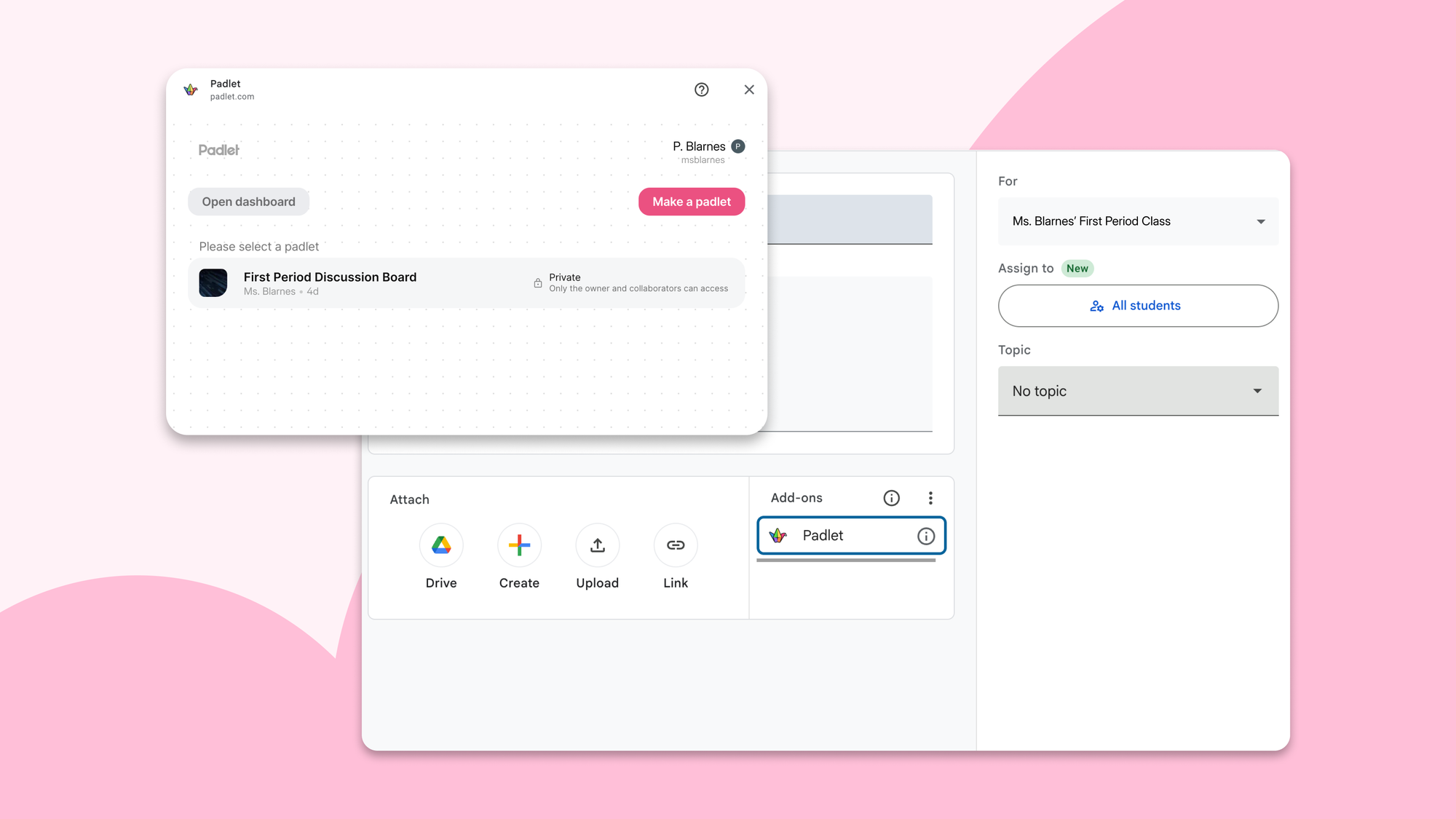
You have your Google Classroom. You have your Padlet. And between them, a lot of manual work: copy-pasting links, adjusting sharing permissions, transcribing grades.
We want Padlet to fit into your workflow, not fight it. So we built a suite of Google Classroom integrations that lets information flow freely between the two.
What’s new?
A few things. First, we added rostering via Google Workspace for Education and Google Classroom. We also built an add-on so you can attach Padlet assignments directly from within Google Classroom, plus grade passback so you can sync with your gradebook when you're done.
What is rostering and why should I care?
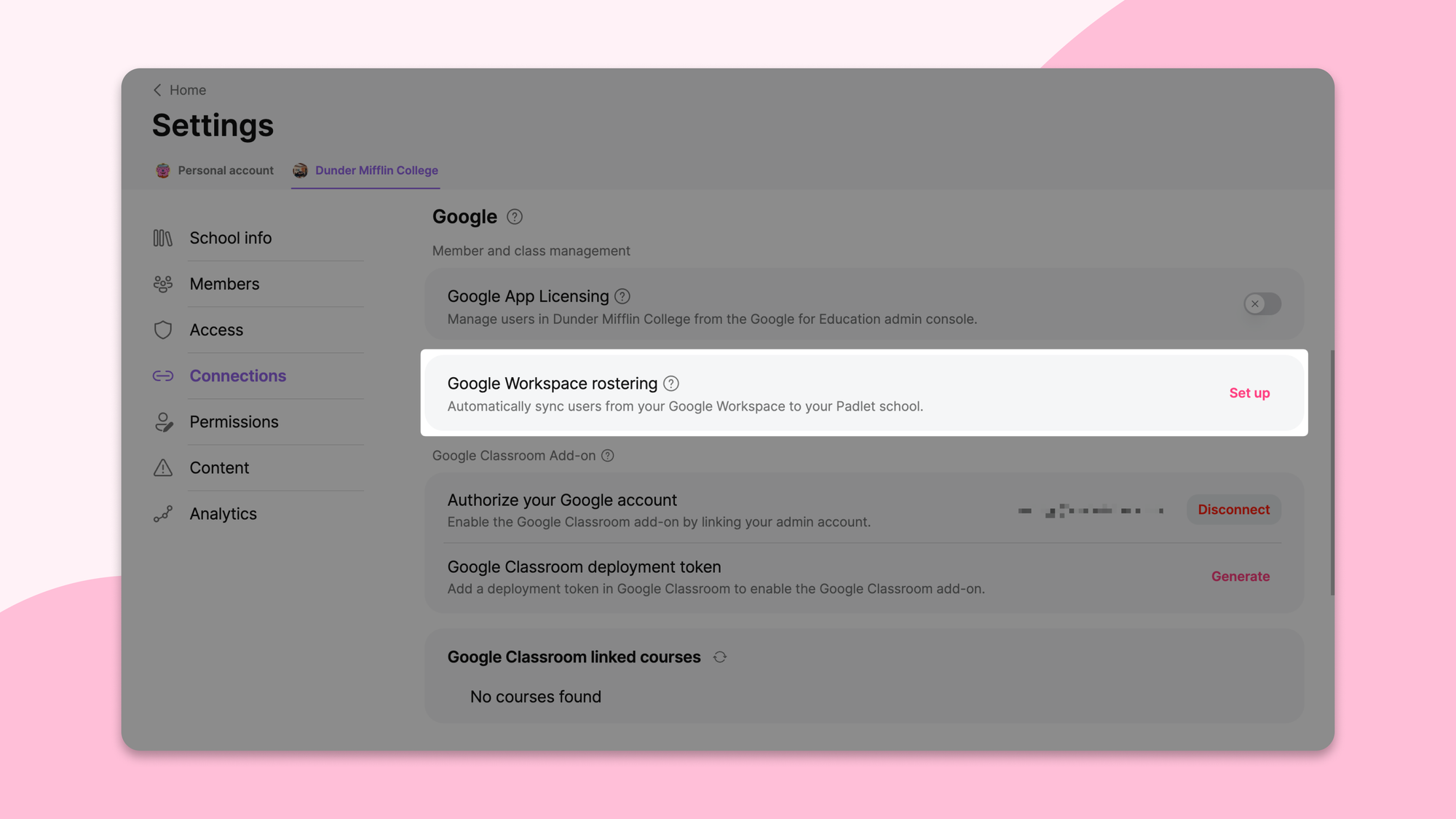
Rostering is the unsexy word for the very satisfying act of not having to manually add every student to your board, school, or class on Padlet.
There are two new integrations, and they do different things. Google Workspace for Education handles user rostering: it syncs your teachers and students and their roles into Padlet. New student joins your school? They show up in Padlet. Student moves to a different class? Padlet knows.
Google Classroom handles class rostering: it syncs your Google Classroom courses into Padlet as classes, so the groups you've already set up in Google Classroom are ready to go in Padlet too.
Your IT admin sets both up from the Padlet school account settings. The first sync runs immediately, and daily automatic syncs keep everything aligned after that.
How does the Padlet add-on work inside Google Classroom?
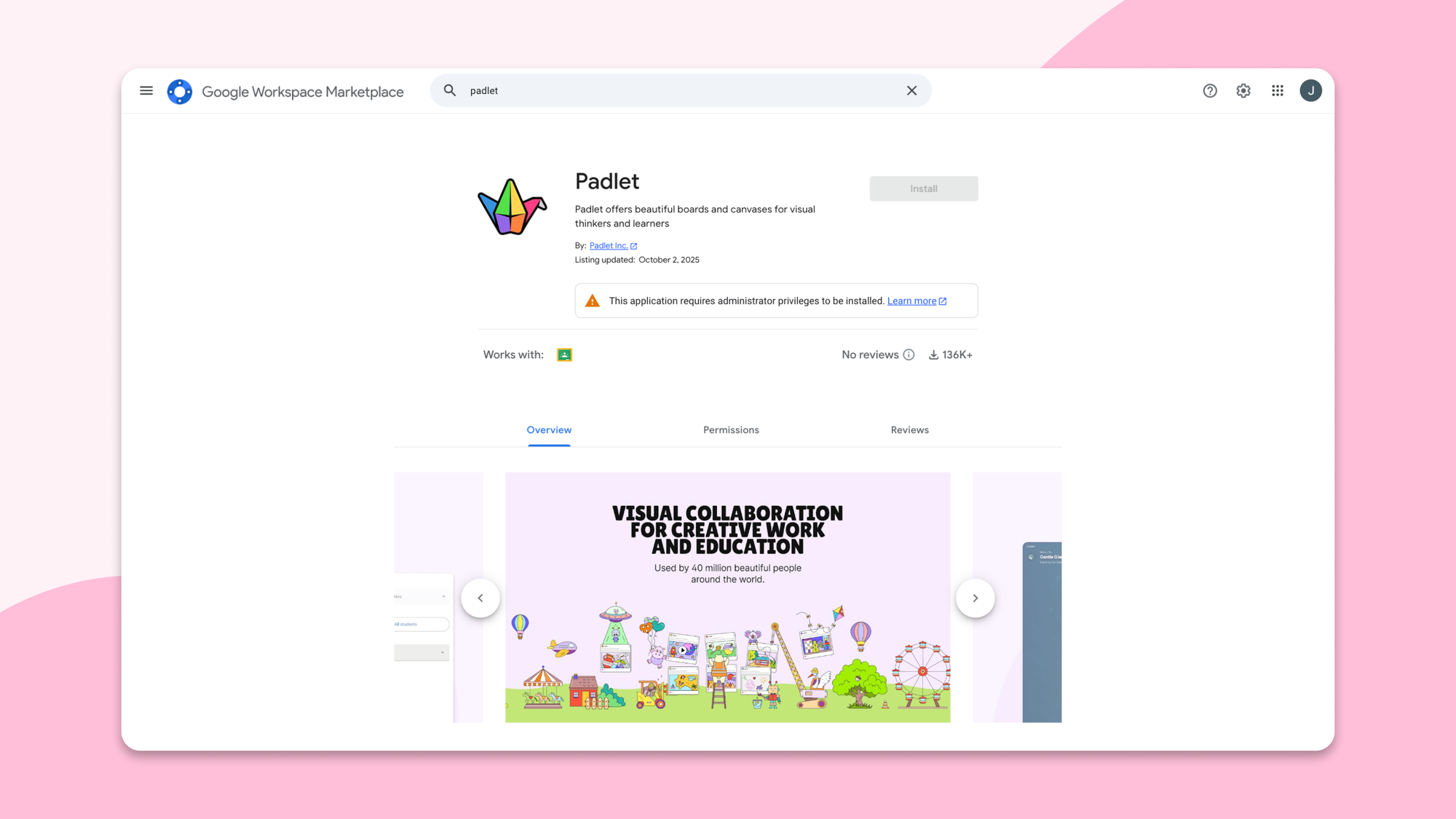
With the add-on, teachers can attach a padlet directly to any Google Classroom assignment. The add-on is set up by a Google Workspace admin through the Google admin console, and teachers can start using it once it's been configured for their school.
Once it's in place, teachers can attach a padlet to any assignment with just a few clicks. Students see the padlet right inside Google Classroom. They can view it, interact with it, and submit their work without leaving the tab.
One thing to know: setup has to be done by a Google Workspace administrator, not an individual teacher. So if you're a teacher reading this, the move is to forward this post to your admin.
What about grades? That's where the real copy-pasting happened.
We know. We heard you. Loudly. Repeatedly. At conferences, in feedback forms, in support tickets.
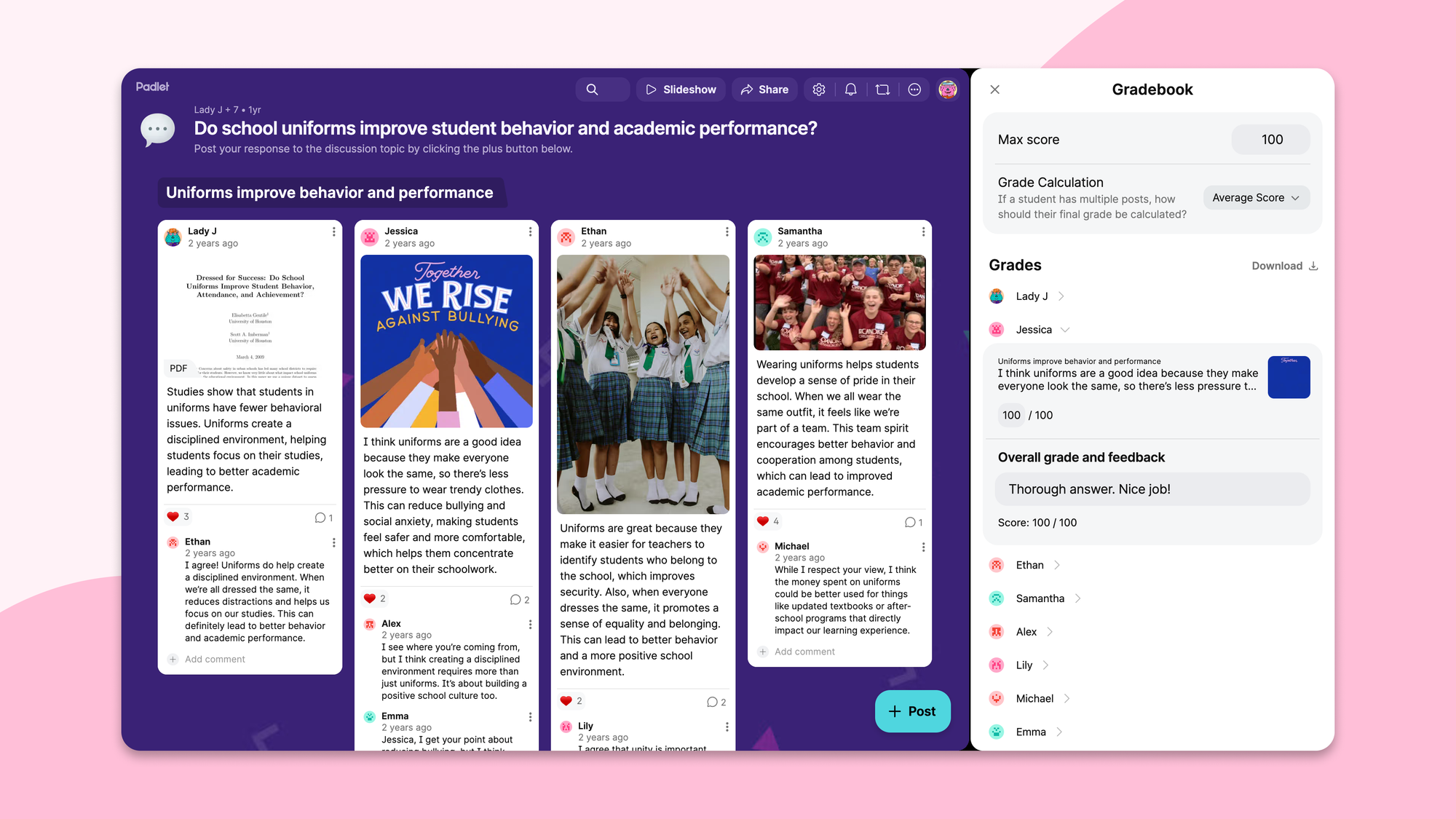
Here's the problem we were trying to solve. Google Classroom's gradebook has no visibility into what's on your padlet. So teachers who wanted to grade a Padlet assignment had to open the padlet, look at each student's posts, note the score somewhere, then switch back to Google Classroom and enter it by hand.
So we built grade passback. You see the post, you score it, you move on. Flip the Grade Passback toggle when you're done, and scores flow directly into your Google Classroom gradebook as drafts, ready for you to review before anything goes official.
The place where the work happens should be the place where you grade it. We just make sure the number ends up where it needs to live.
Do I need a special Padlet plan for this?
These Google Classroom integrations are available on Padlet for Schools plans.
If you aren't part of a Padlet for Schools account, you can still share padlets to Google Classroom from within Padlet. And if you're not sure what plan your school is on, your admin will know (and now you have another reason to email them).
How do I get started?
If you're an admin: head to your Padlet school library settings to connect Google Workspace and set up rostering. Full rostering setup guide →
If you're a teacher: Once your admin connects Padlet to Google Classroom, you'll see Padlet as an option the next time you create a Google Classroom assignment. Full add-on and grading guide →
If you have questions, we're always around.
The goal, as always, is simple: less time moving data around, more time actually teaching. We hope this gets you a little closer to that.