
Your OneDrive files, now on Padlet
Skip the Downloads folder and attach files directly from OneDrive to any post.


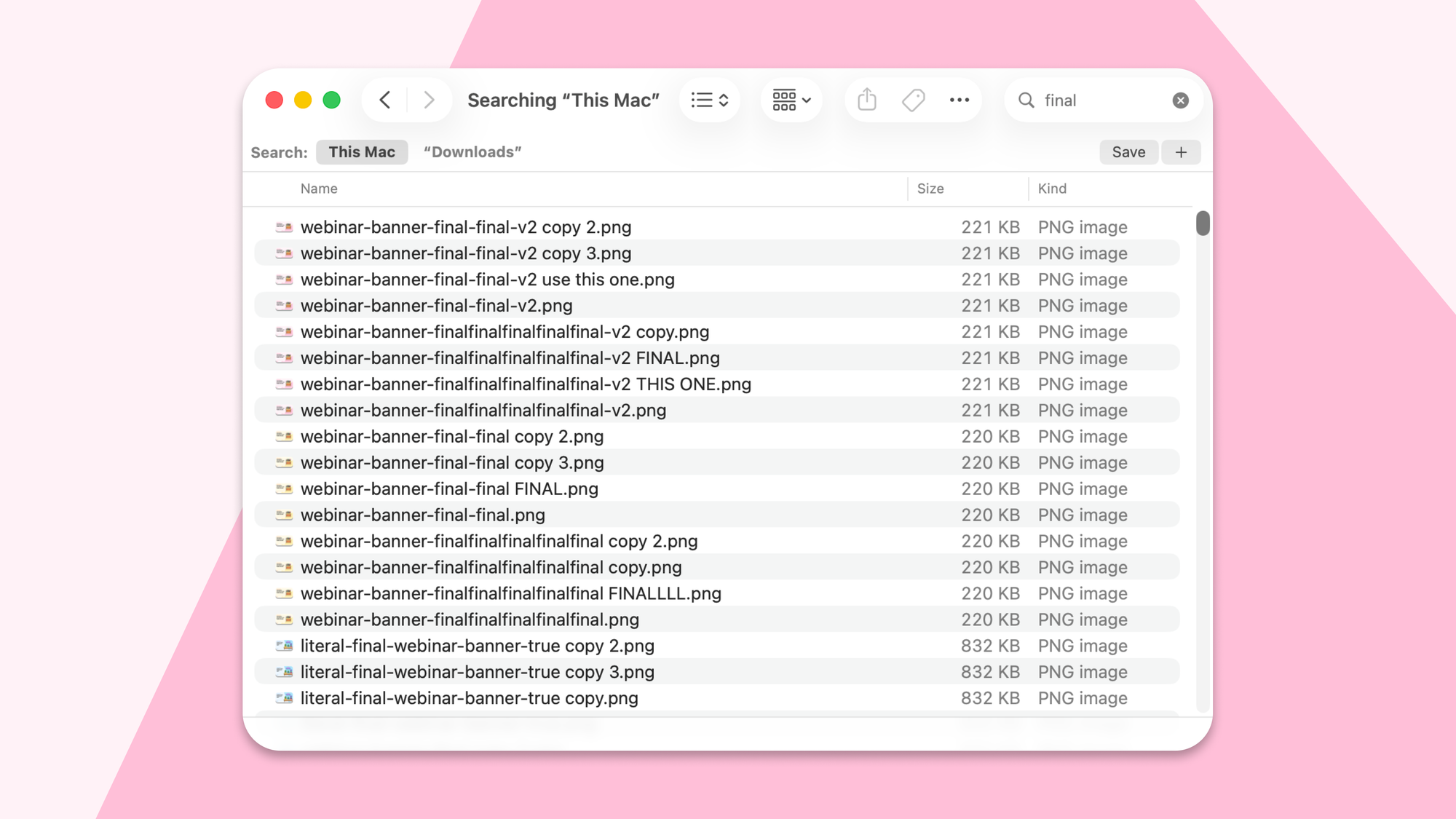
If your Downloads folder has ever looked anything like this, we made something for you.
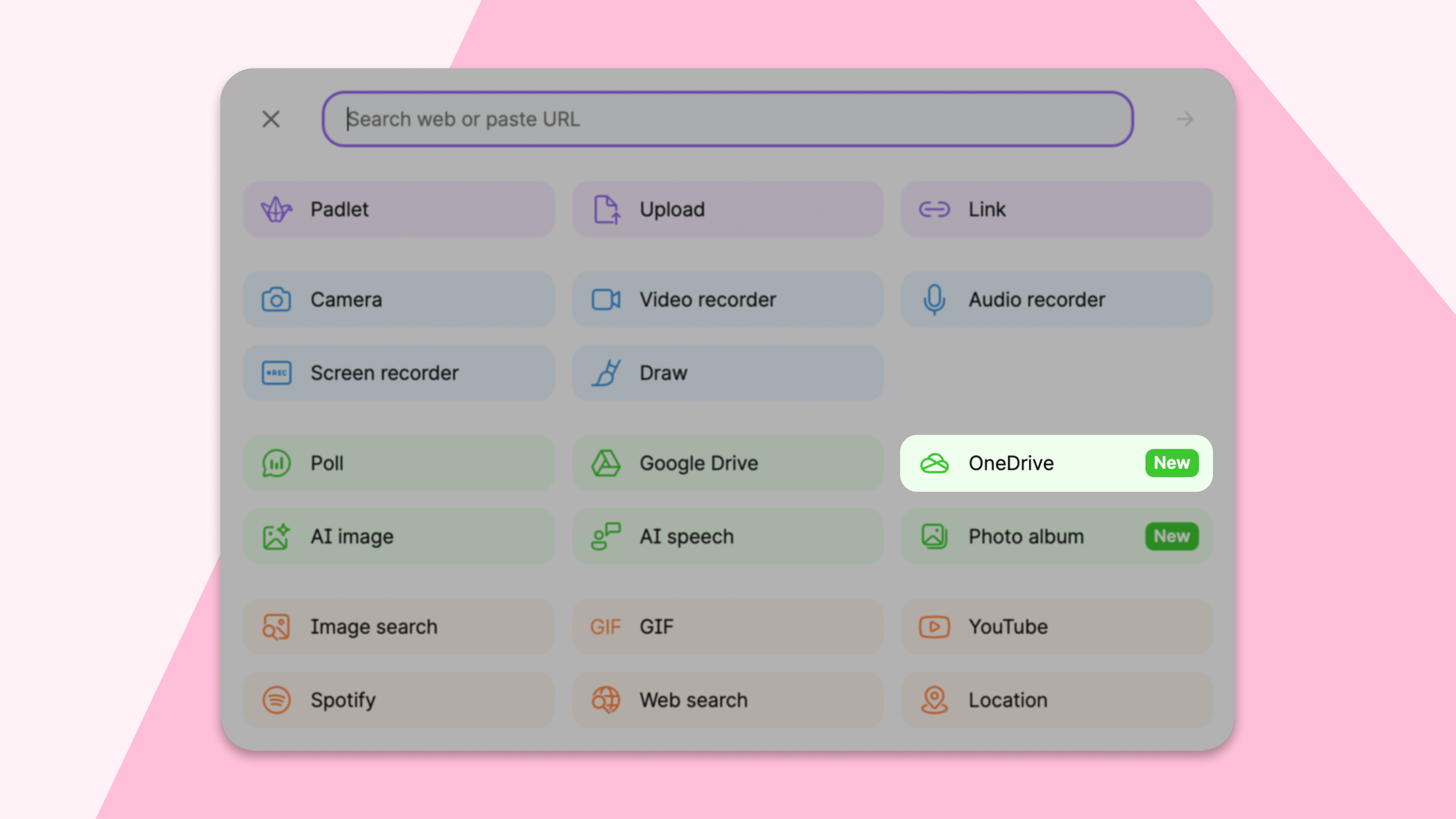
You can now attach files directly from OneDrive to any post on your Padlet. Word documents, PowerPoints, videos, PDFs. If it lives in your OneDrive, you can add it to your padlet in a few clicks, no downloading required.
How does it work?
Click the attachment icon on any post. You'll see OneDrive listed as an option. Click it and pick your file. That's it. Your meticulously named "Unit3_VolcanoesFINAL_v2_REAL.pptx" is on your padlet in three clicks.
What can I attach?
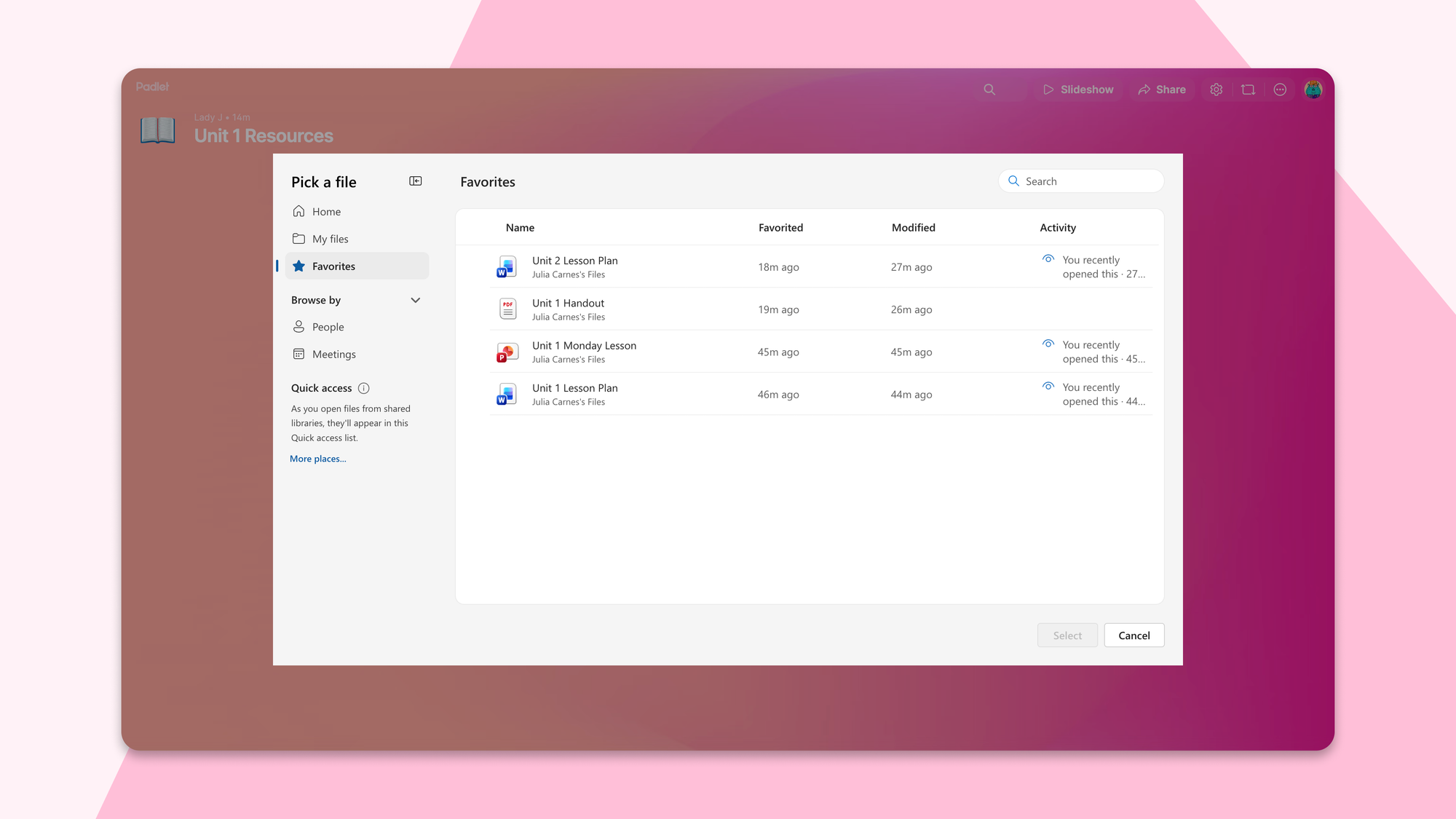
Pretty much anything you'd normally share with students. Your unit plan Word doc that lives in that very organized "2025-26 Curriculum" folder. The PowerPoint you spent way too long getting the font right on. A video walkthrough of a math problem you recorded for students who were absent. If it's in OneDrive, you can put it on your padlet without touching your Downloads folder.
Will Padlet make a copy of my file, or just link to it?
For most files (Word docs, PowerPoints, PDFs), Padlet makes a copy. The original stays safe in OneDrive, and Padlet works from its own version. The exception is very large files like videos and OneNote files, which Padlet links to rather than copies.
Do my students need a Microsoft account to open the file?
Nope. Since Padlet makes a copy of the file, students access it just like any other attachment on a padlet, no Microsoft login required.
How do I get started?
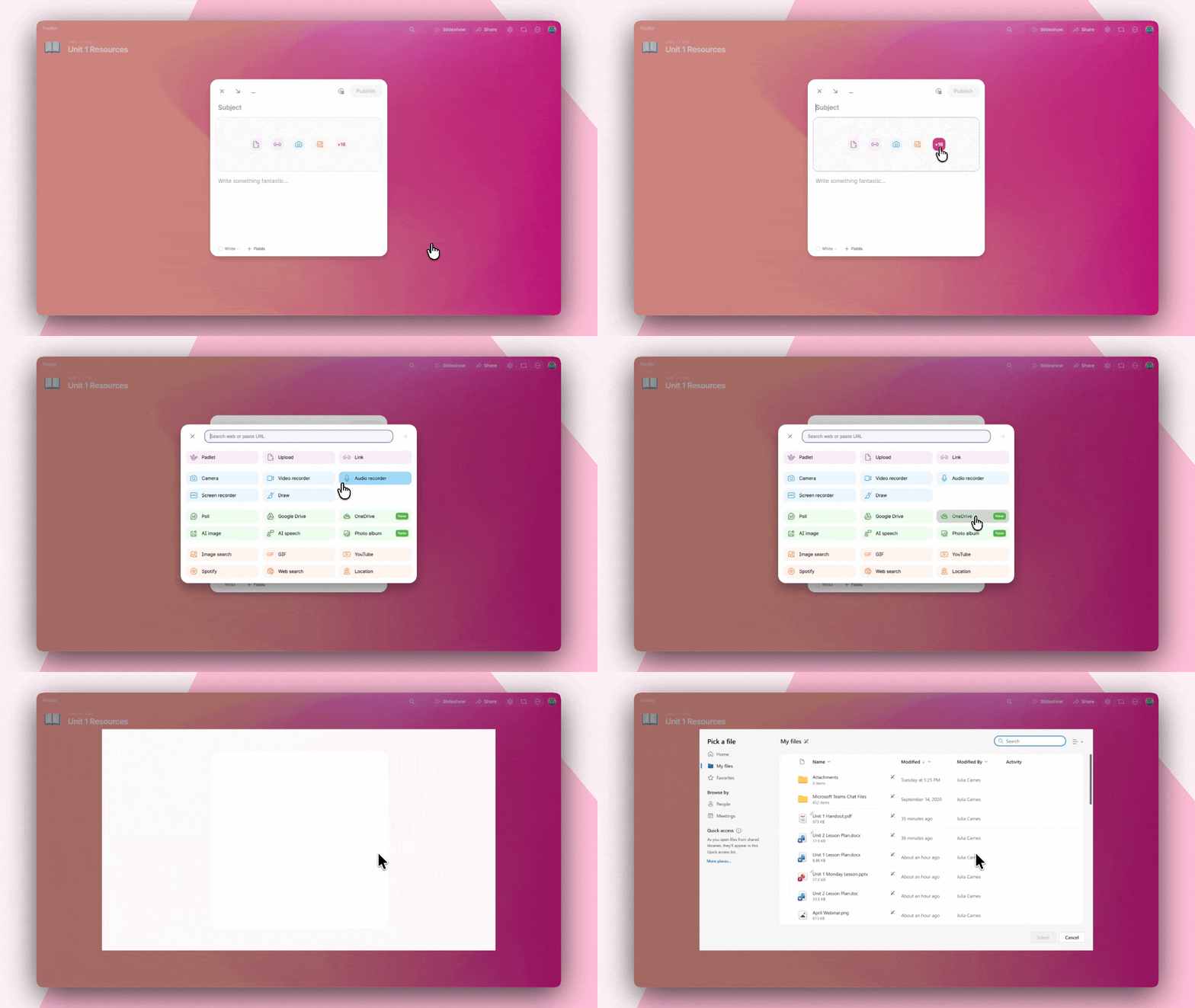
Open a padlet, create a post, click the attachment icon, and select OneDrive. You'll be prompted to sign in to your Microsoft account once. Even if you already use a Microsoft account to log in to Padlet, this is a separate one-time step. We kept it that way intentionally, so you have the flexibility to link whichever Microsoft account your files actually live in. After that, select your file and publish.
We also just added a Microsoft Teams integration. Have a new integration request? Send us a note.