
Photo album attachment
Add up to six photos to a single post on your board.

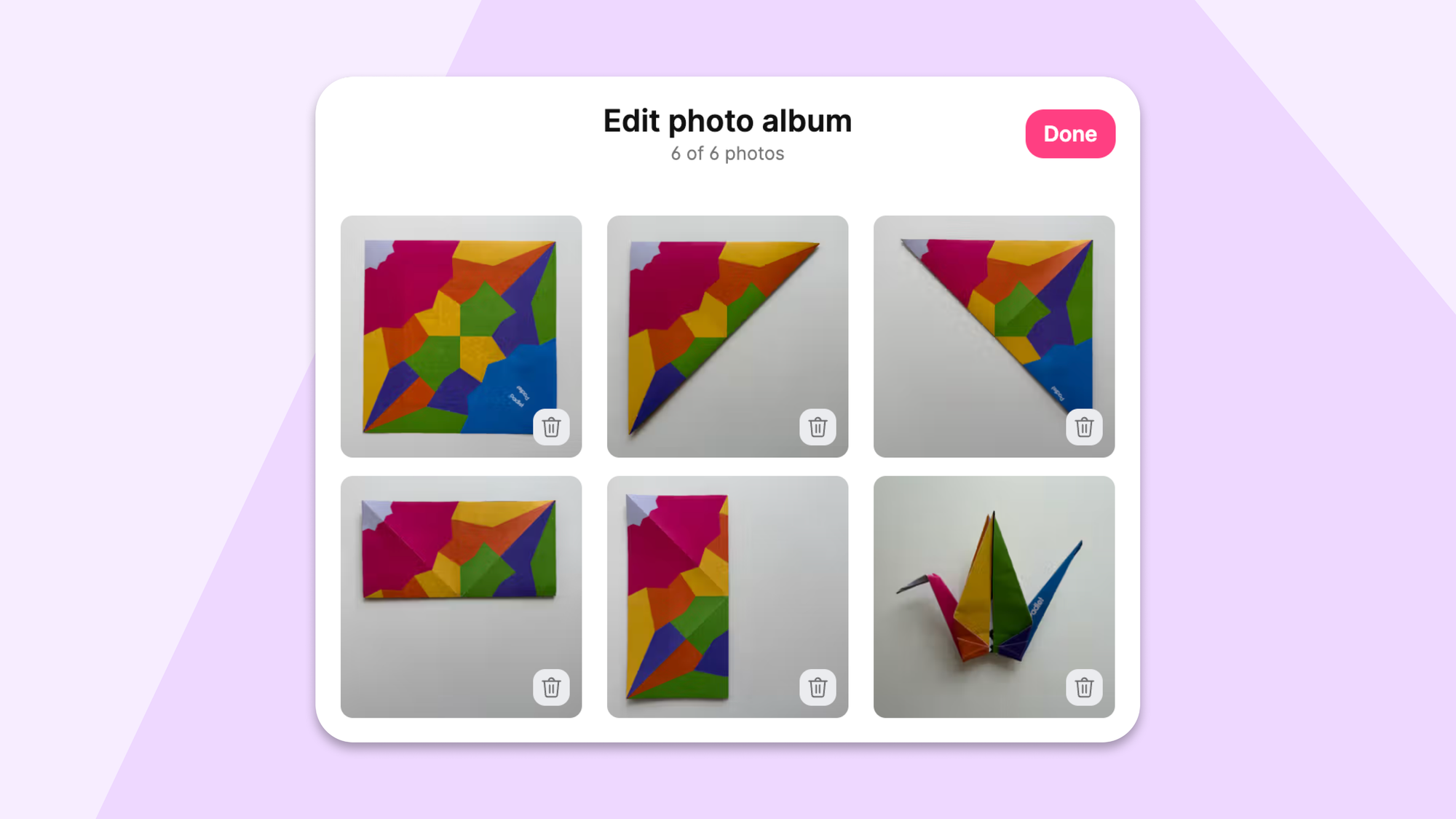
Sometimes, a single image just isn't enough for your post.
You're documenting a field trip. Sharing a step-by-step recipe. Building a mood board that captures all the vibes.
For years, you've asked us for a way to add multiple photos to a single post. And now we've figured out how to make it happen.
You can now add up to six photos to any post on Padlet. We call them photo albums.
Why did this take so long?
Padlet was built with a simple assumption: one post, one attachment. That mental model was baked into everything—how we store data, how we render posts, how we moderate content.
Adding photo albums meant rethinking all of it.
We'd actually been asked for multiple attachments of all types for years. Photos, videos, links, documents, the works. But that scope was enormous. Photos felt like the right place to start. A "photo album" is a real-world concept. Your grandmother has one. You know exactly what it means. We didn't have to explain it.
How do I make a photo album?
We designed three ways, depending on how you work.
From the attachment picker
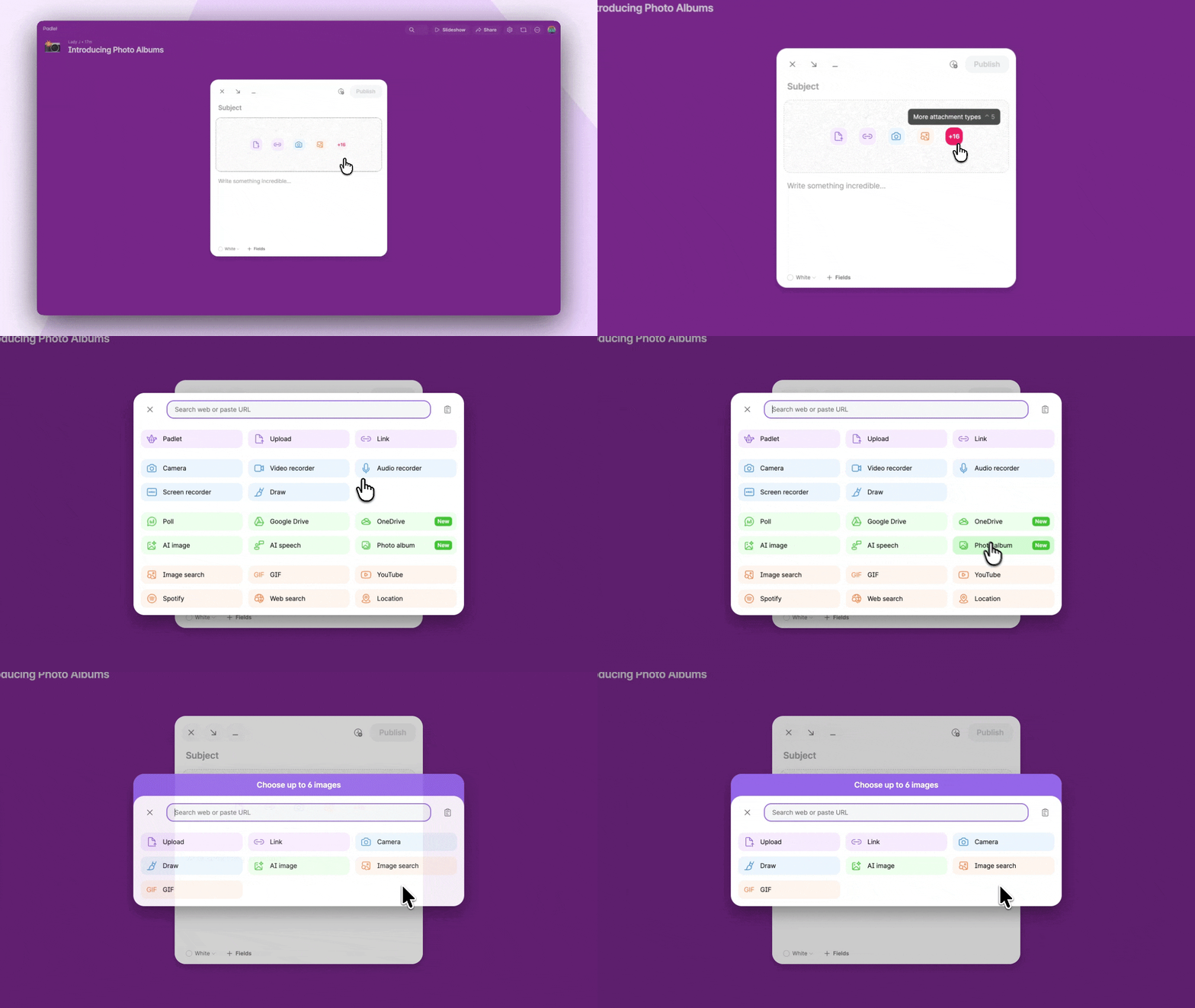
Click the photo album option, select your images, done.
Drag and drop
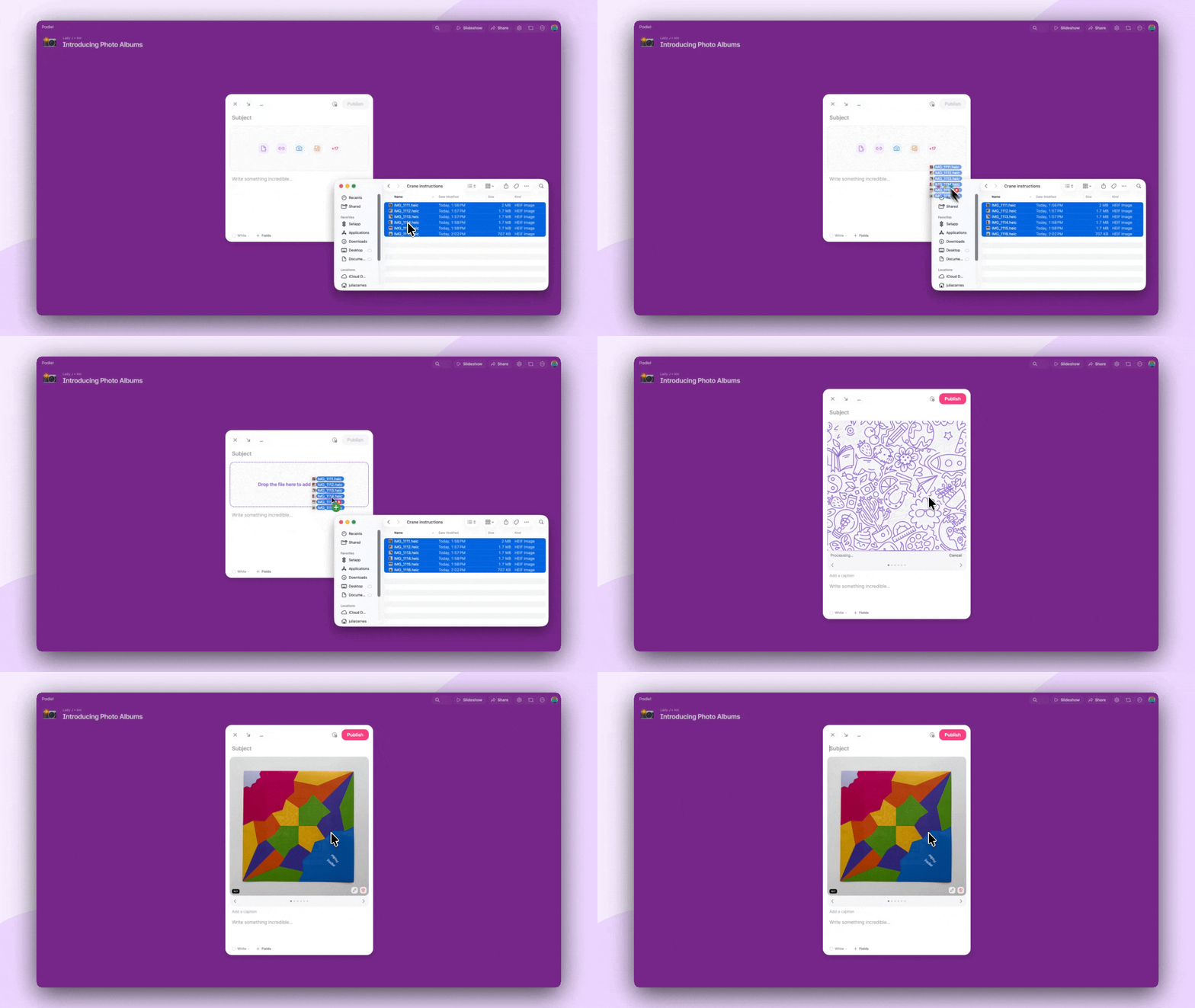
Drag multiple photos onto the composer at once. We'll bundle them into an album automatically.
Add as you go
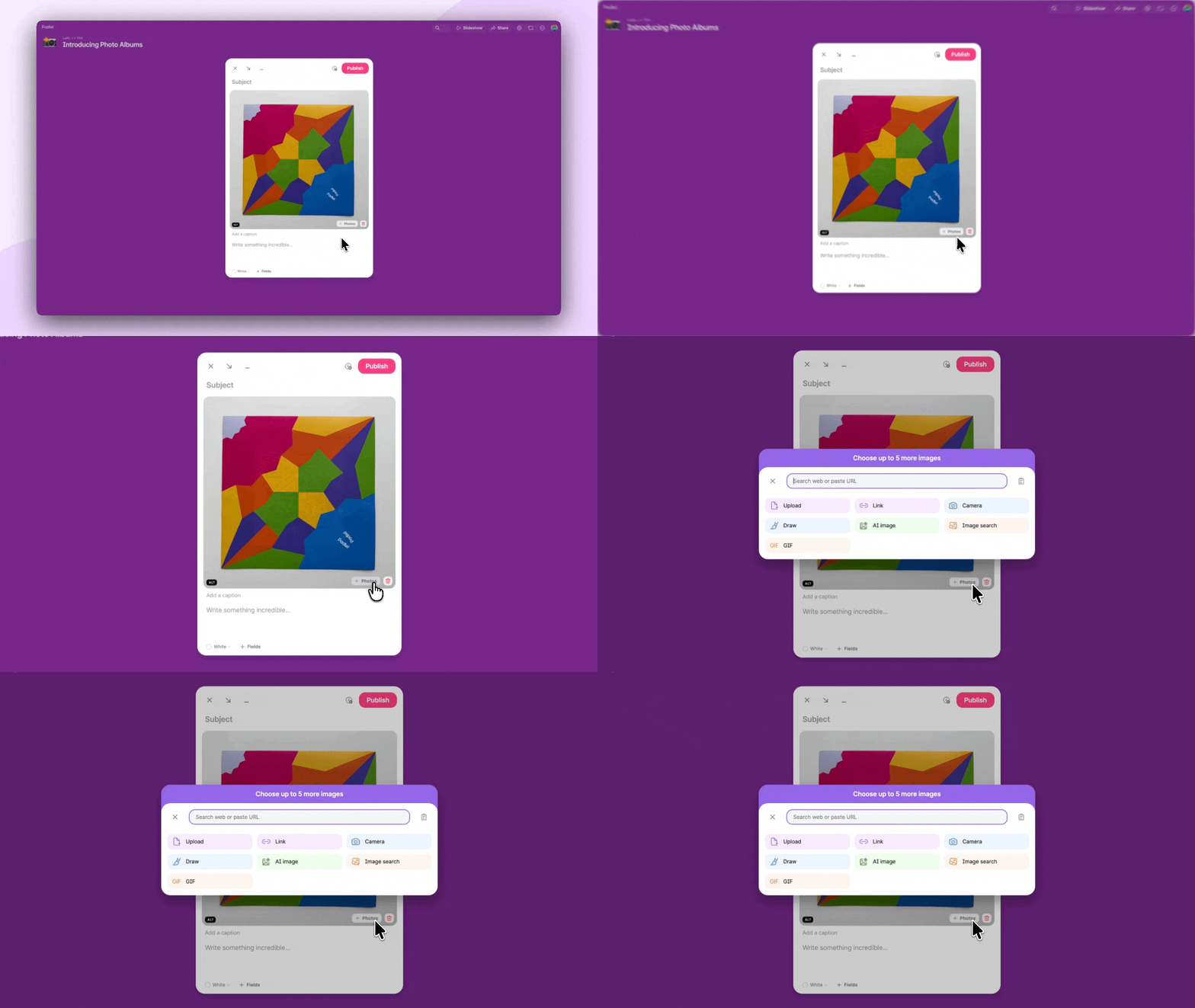
Already uploaded one photo? Click the "+ Photos" button to keep adding. Any single image can become an album.
You can add up to six photos per album. Enough to tell a complete story without turning your board into an infinite scroll.
Why six photos? Why not unlimited?
We considered it. But constraints are a feature, not a bug.
Six photos is enough for a recipe with steps, a field trip recap, or a mood board that actually fits on screen. It keeps posts at a reasonable size so your board doesn't become a wall of endless scrolling. And honestly, if you need more than six photos, you might be making a slideshow (and we have a format for that).
Why carousels instead of collages?
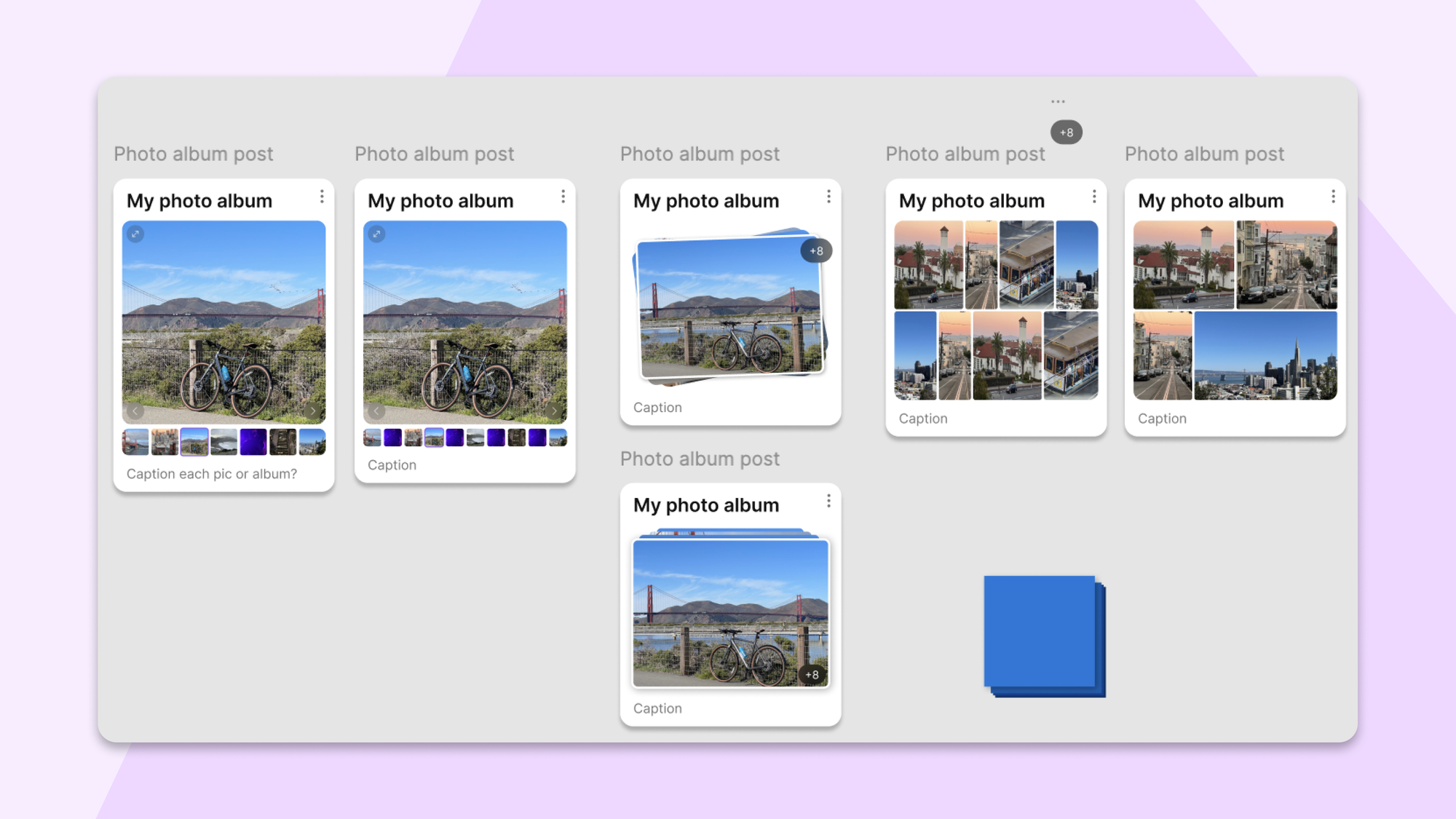
Early on, we explored two approaches: collages (all photos visible at once in a grid) and carousels (swipe through them like slides).
Collages looked great in mockups. In the real world, they got chaotic fast. With different aspect ratios and varying photo counts, the visual noise competed with everything else on your board.
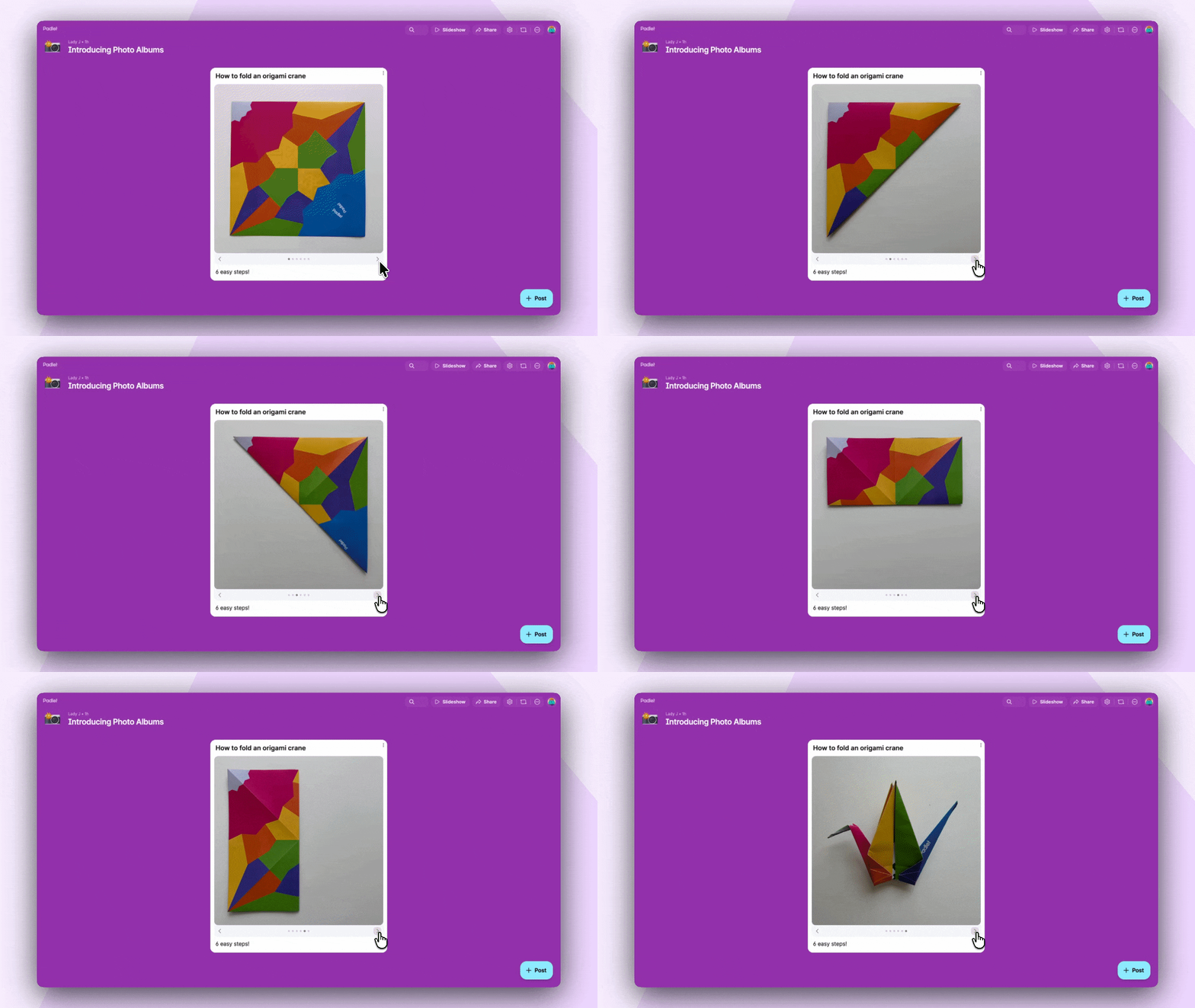
Carousels won. You already know the pattern from Instagram. Swipe through, or use the arrows for keyboard navigation. And crucially, not every image needs to load at once, which keeps your board fast even when it's full of photo-heavy posts.
What happens when photos are different sizes?
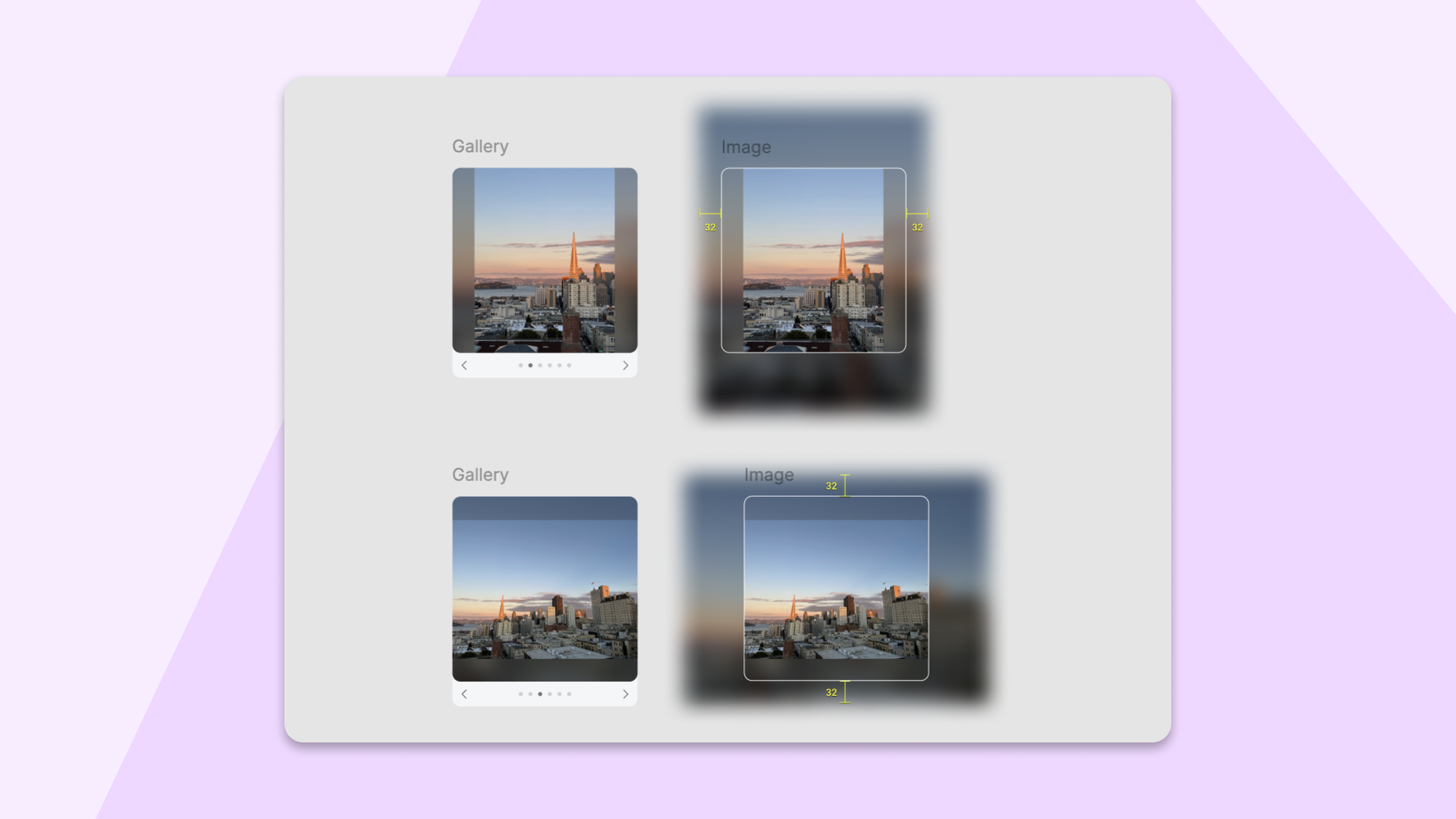
Photos come in all shapes. Tall portraits. Wide landscapes. Perfect squares. When you're swiping through a carousel, what happens when the next photo is a completely different aspect ratio?
Without careful handling, posts would jump and resize as you swipe. The board would feel jittery. You might not consciously notice it, but you'd feel it.
Our solution: letterboxing with blurred backgrounds. We keep each photo's original aspect ratio (no awkward cropping) while maintaining a consistent post size. The blurred background behind each image makes the transitions feel intentional rather than broken.
One exception: the first photo displays without letterboxing. It's your cover image that represents the album on your board.
Does this work on all board formats?
This was one of the trickier parts. Padlet has many formats — Wall, Stream, Grid, Timeline, Map — plus slideshows, and photo albums needed to feel native to all of them.
Slideshow was particularly interesting. Most people use arrow keys to navigate between slides. But now slides could also contain multiple images. We didn't want to break the flow of "right arrow = forward progress."
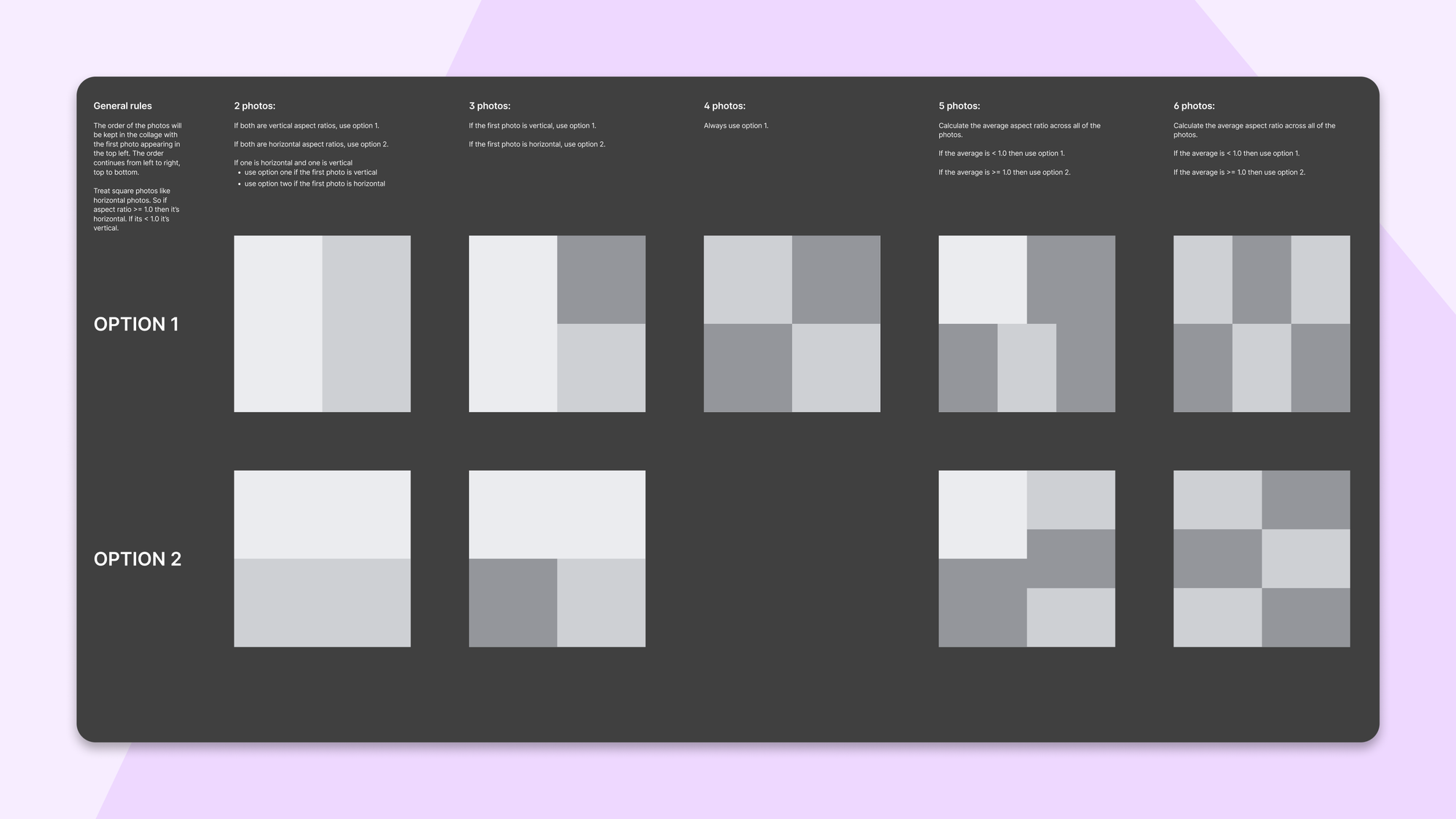
Our solution: when you land on a slide with a photo album, you first see a collage of all the images. Hit the right arrow and you'll move through each image one at a time. After the last image, you continue to the next slide. The whole presentation stays keyboard-navigable in one direction, no special gestures required.
If you're impatient (we respect that), you can click any image in the collage to jump straight to it in the sequence.
Is this available to everyone?
Yes. Photo albums are available to all Padlet users, free and paid.
What's next?
This is version one. We're already thinking about what comes next: mixing photos with other media types, different display options. If you have opinions (we know you do), we're listening.
Big thanks to Alex, Estee, and Declan for contributions to this blog post and to the entire team for all of the design and engineering work needed to bring this feature to life.