
Rebuilt Share Extension with bulk editing and ordering
Share up to 100 photos at once and edit before posting, all from your phone.

If you've ever shared photos to Padlet from your phone's photo library or another app, you've used the Share Extension. It's the Padlet logo that shows up in your iOS or Android share sheet.
The old Share Extension worked. Mostly. Unless you selected 11 photos, in which case it told you (after you'd carefully made your selections) that the limit was 10. So you'd go back, try to remember which 10 you'd picked, and start over. A ritual familiar to anyone who's ever been told "actually, this line is card only" after waiting to check out for 15 minutes.
We've rebuilt it from the ground up. Here's what changed.
Why did you rebuild it?
We couldn't upload our own photos.
After every Padlet release cycle, we throw a small celebration to mark the occasion. But whenever we'd try to share the photos afterward, we'd run into every limitation of our own Share Extension. Hundreds of photos, no control over order, no way to edit anything before publishing. We were building a product for sharing content and then struggling to share content.
That kind of irony didn't sit well with our engineering team.
What was wrong with the old version?
Three things. First, the invisible limit of 10 attachments. It was invisible because you would only discover it after selecting your photos.
Second, the order wasn't preserved. You'd upload a bunch of photos and they'd arrive on your padlet like a shuffled deck.
Third, there was no way to edit a post before publishing. You just had to accept whatever default the system gave you.
So what's new?
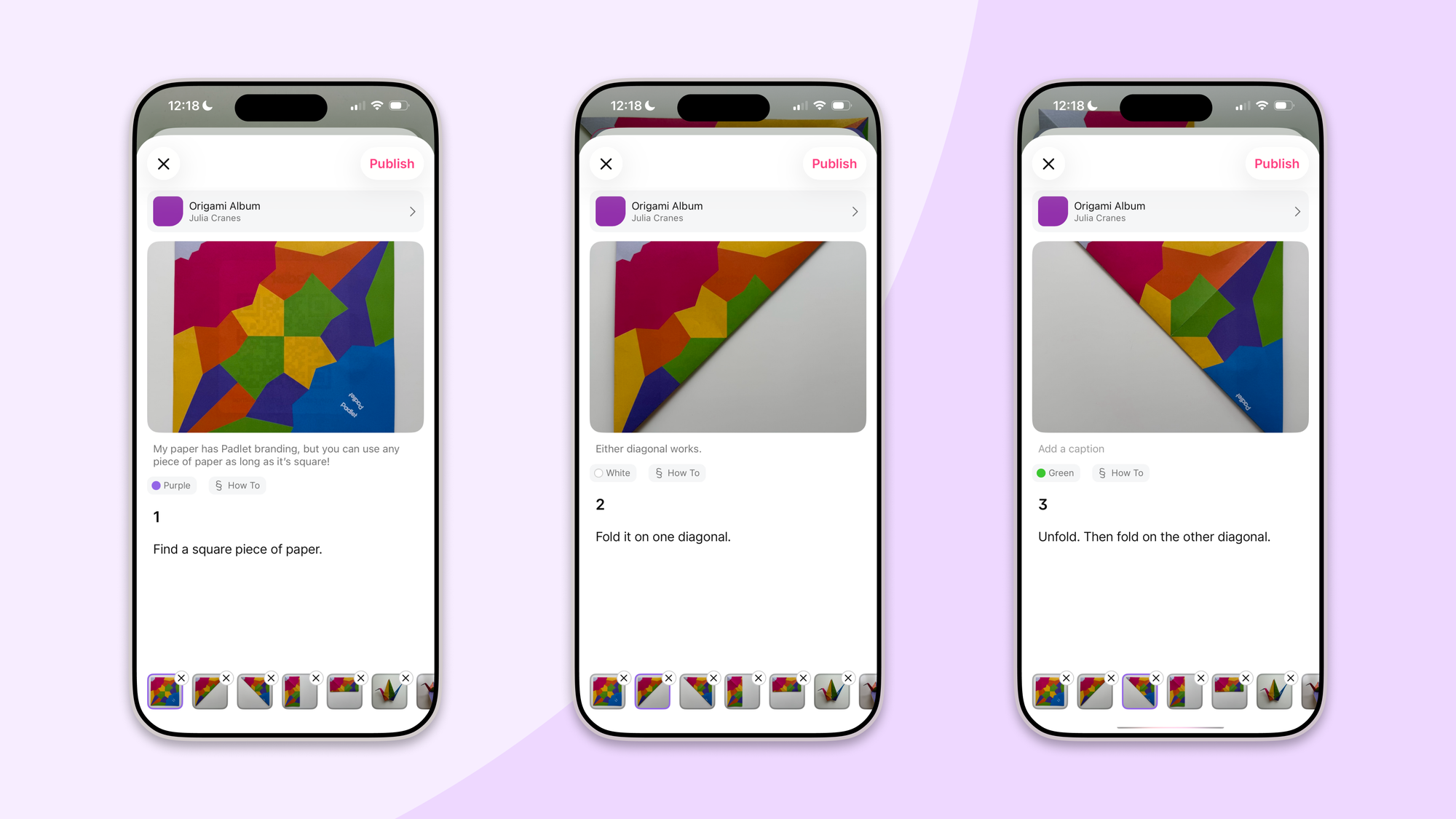
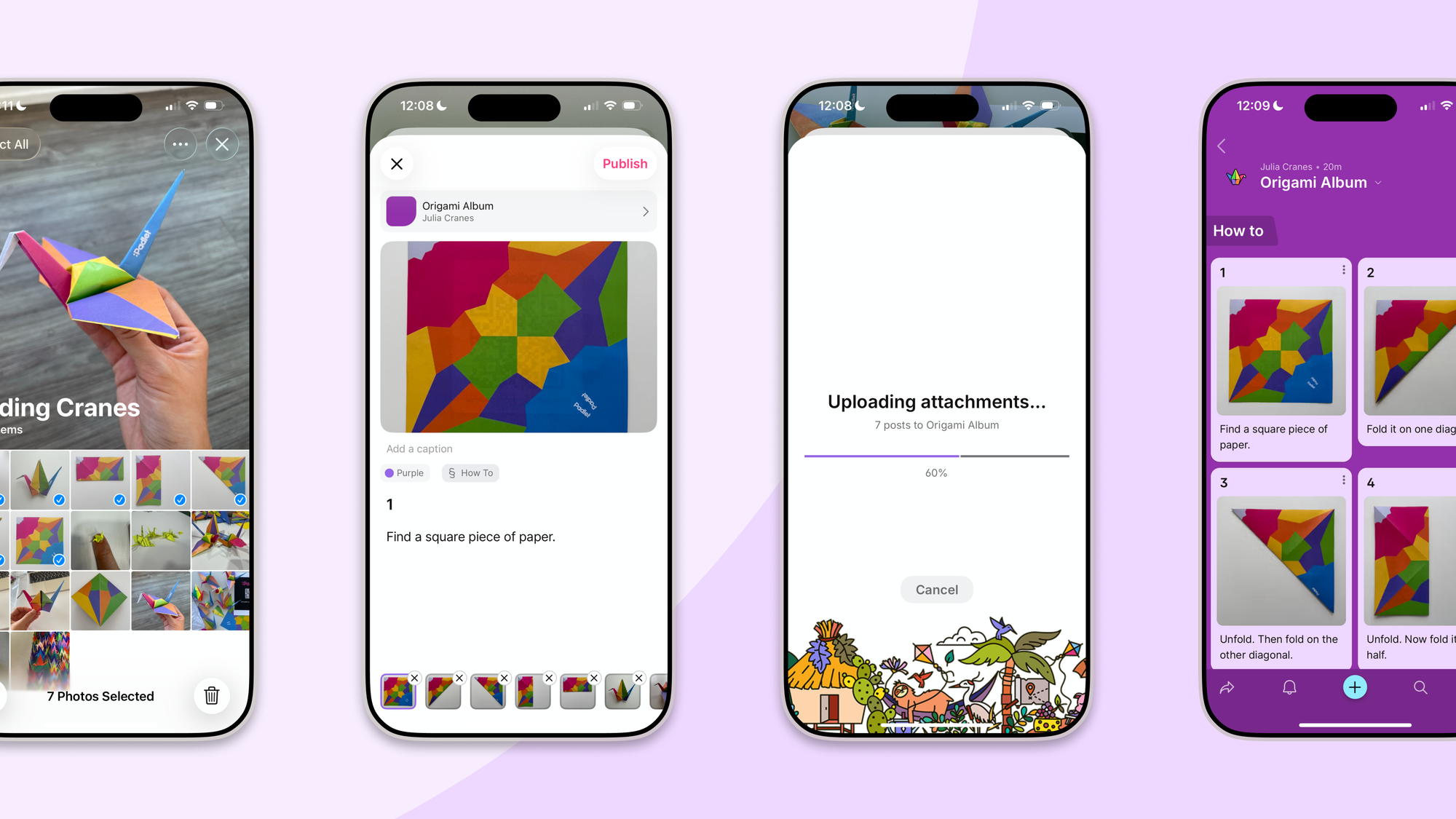
You can now select up to 100 photos or files at once. Every attachment gets its own post, and you can edit each one before publishing: add text, tweak the details, make it yours. If you want to apply a color, section, or location to all your attachments at once, you can do that in one shot.
And — this one's subtle but satisfying — your posts now appear in chronological order, the same order they appear in your photo library. Photo 1 is post 1. Photo 47 is post 47.
The ordering thing sounds simple. Was it?
Not really! This is the kind of problem that sounds trivial until you think about how file uploads work.
Uploading photos one at a time, in sequence, is slow. Nobody wants to watch a progress bar crawl through 80 photos. So we upload in parallel: multiple photos going up at the same time. But parallel uploads finish in unpredictable order. A 200KB photo finishes before a 5MB photo, regardless of which one you picked first. It's fastest-upload-wins, which is great for speed and terrible for ordering.
The solution our mobile engineer Chee Kit landed on: upload in parallel for speed, then create the posts sequentially in a second phase. Post creation is much faster than file upload, so this adds negligible time while preserving chronological order. You get the speed of parallel uploads and the correctness of sequential posting. Zi Fong on design made sure the whole flow stayed intuitive despite the added complexity under the hood.
Does it work on both iOS and Android?
Yes. Same experience on both platforms.
How many attachments can I upload at once?
We capped it at 100 attachments per share. We briefly considered going truly unlimited but decided that protecting you from your phone's memory constraints was the kind thing to do. 100 should cover even the most enthusiastic party photographer.
How do I use it?
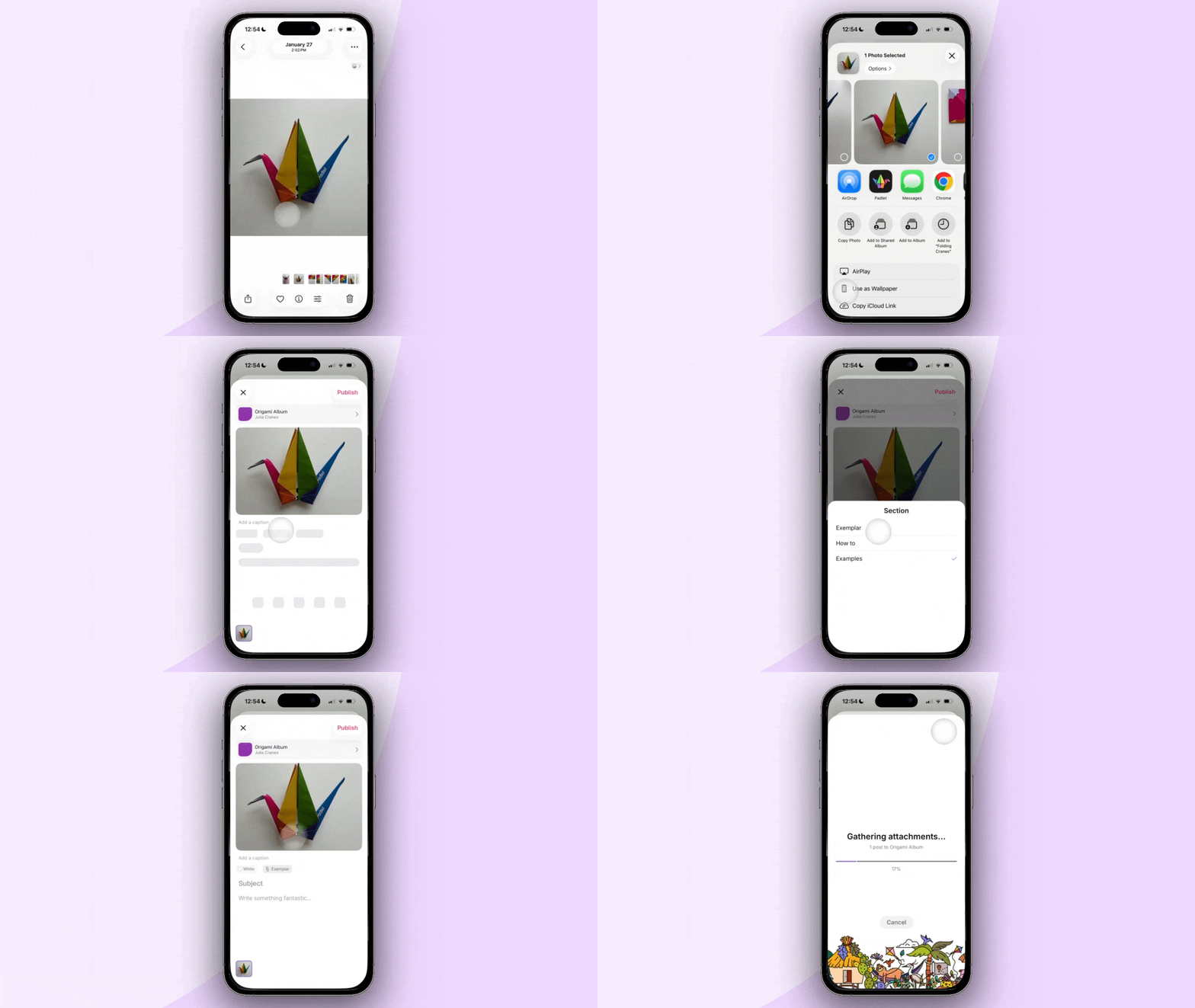
You'll need the Padlet app on your phone. We support iOS and Android.
Once you have it, select photos or files in any app, tap the share button, and choose Padlet. Edit your post, then publish.