
Padlet lives inside Microsoft Teams
Padlet is now fully integrated into Microsoft Teams with roles, shared dashboards, and auto-provisioning.


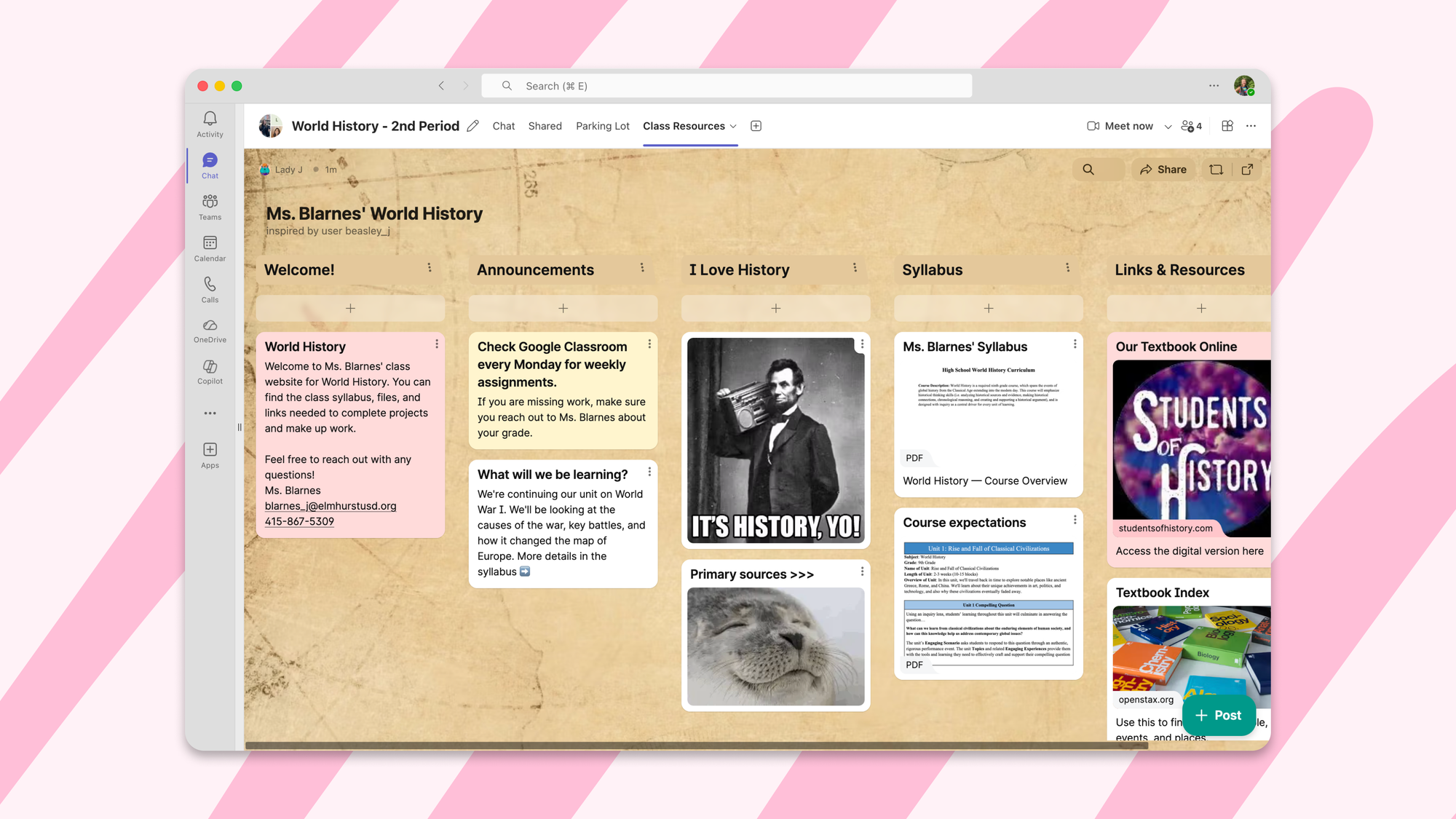
If you're a teacher, you probably have at least 47 browser tabs open. There's your gradebook, your lesson plan, your school's communication platform, your personal email, your school email, and at least one tab you opened three weeks ago that you're afraid to close because you've forgotten what it is.
Perhaps one of those browser tabs is Padlet. (If so: thank you.) But every time you use a padlet in class, you have to share the link in the chat, wait for students to click it, and hope they don’t get distracted by, you know, the internet. It's not a dealbreaker. It's just friction.
We'd like to help with that.
Padlet is now fully integrated into Microsoft Teams. You can create, share, and collaborate on padlets without ever leaving Teams. Here's what that looks like.
What does "Padlet for Microsoft Teams" actually mean?
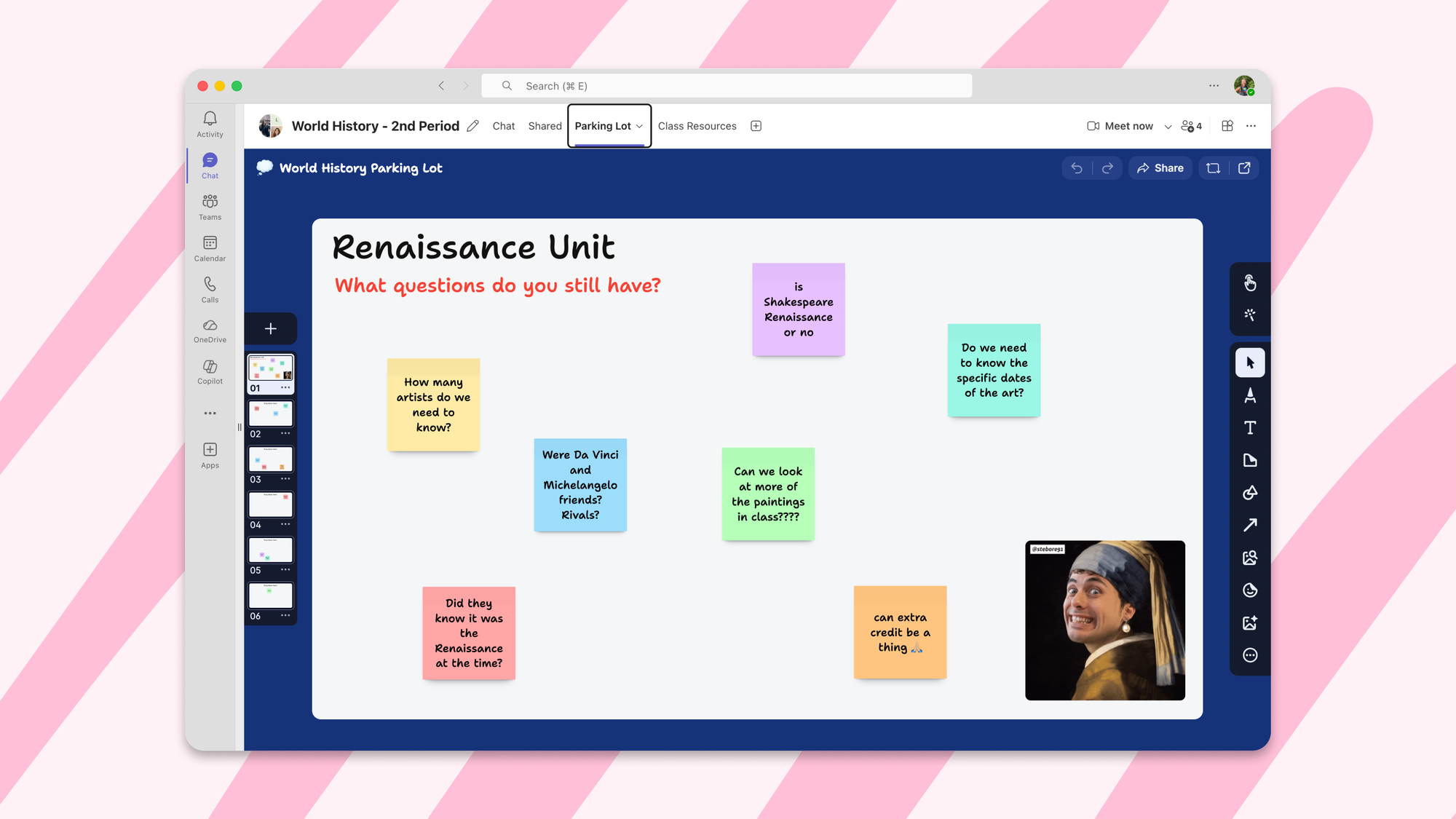
It means Padlet lives inside Teams. Teachers can add a padlet directly as a tab in any Teams channel or chat, the same way you'd add a Word doc or a OneNote. Students open the tab, and there's the padlet. No new accounts to create, no links to paste into the chat, no "wait, where did you say the padlet was?"
It's Padlet, but it's already where everyone already is.
Who is this for?
Anyone who uses Microsoft Teams and Padlet, and espeically K-12 educators who use Teams as their classroom hub. If your school runs on Microsoft 365 and you've been sharing padlets by copying links into chats, this is for you.
What about roles and permissions?
If your school has linked its Padlet for Schools account to Microsoft Teams, we’ll honor your existing role permissions. Everyone gets exactly as much power as they should have, and not a drop more. (We've all seen what happens when students get a drop more.)
What about accounts? Do students need to sign up?
This is our favorite part. If your school has linked a Padlet for Schools account and enabled Microsoft SSO, student accounts will be created automatically when they post on your linked padlet. Students don't sign up. They don't create passwords. They don't get distracted by the sign-up flow. They just... show up, and Padlet knows who they are.
We were a little surprised by how smoothly this came together, honestly. It's one of those features that sounds like it should be complicated, and then it just works.
What if our school hasn't linked Teams to Padlet yet?
No problem. You can still log in with your personal Padlet account and add your own padlets. The experience is a little less automatic, but it still beats the tab-switching situation. And if you want to convince them about how easy it is, just send them this article from our help center.
Is this free?
Yes. Padlet for Microsoft Teams is available on all Padlet plans, at no additional cost.
How do I get started?
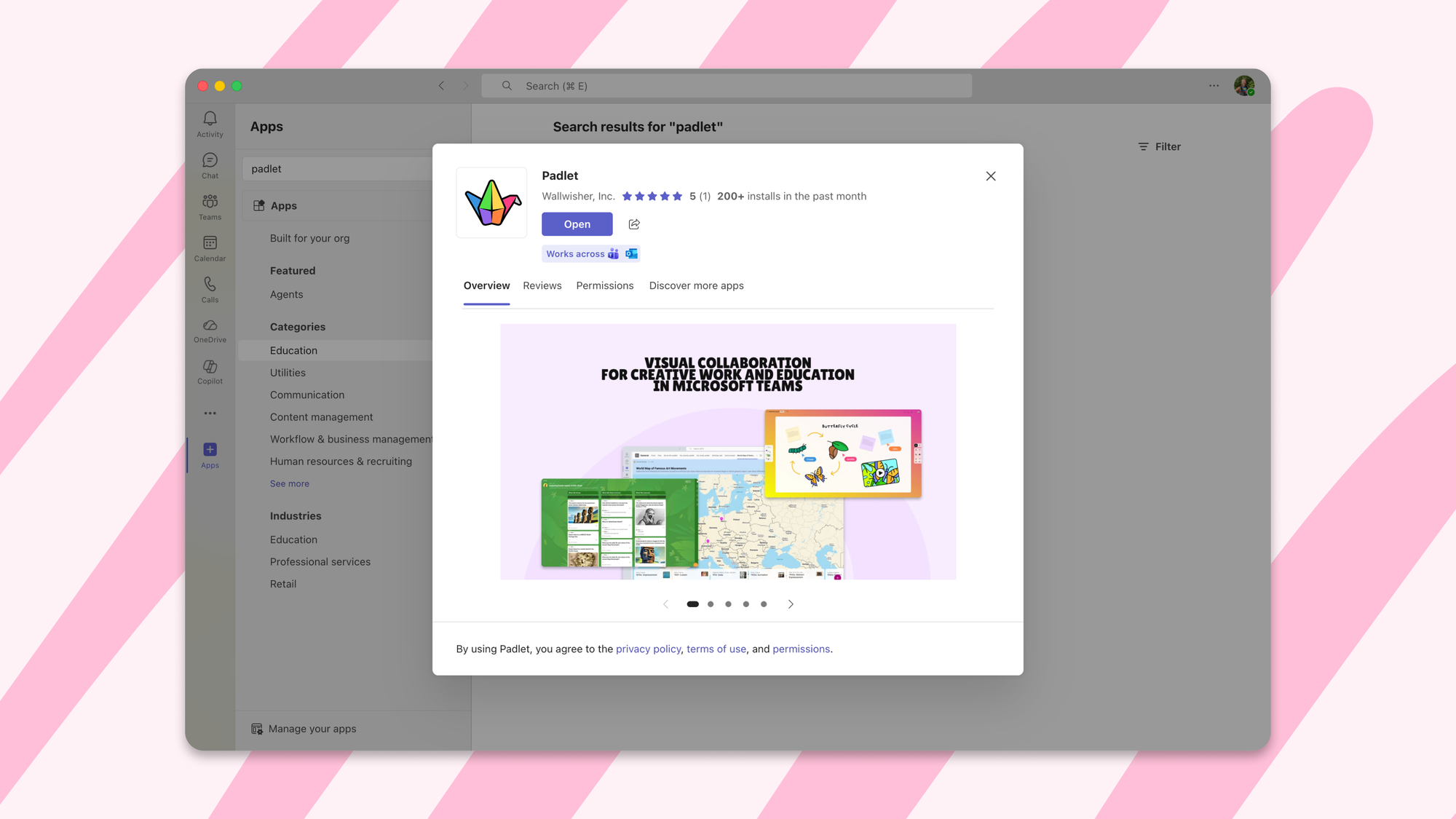
You can add Padlet to Microsoft Teams from the Teams app store. Search "Padlet" and it'll come right up. If you're not yet a Padlet user, you can sign up at padlet.com. It's free to start, and your students will think you're very technologically sophisticated.
We hope this makes your classroom a little less chaotic and your browser a little less full, one tab at a time.