
Import Google Slides and PDFs into Padlet Sandbox
Your documents and slides just got collaborative.

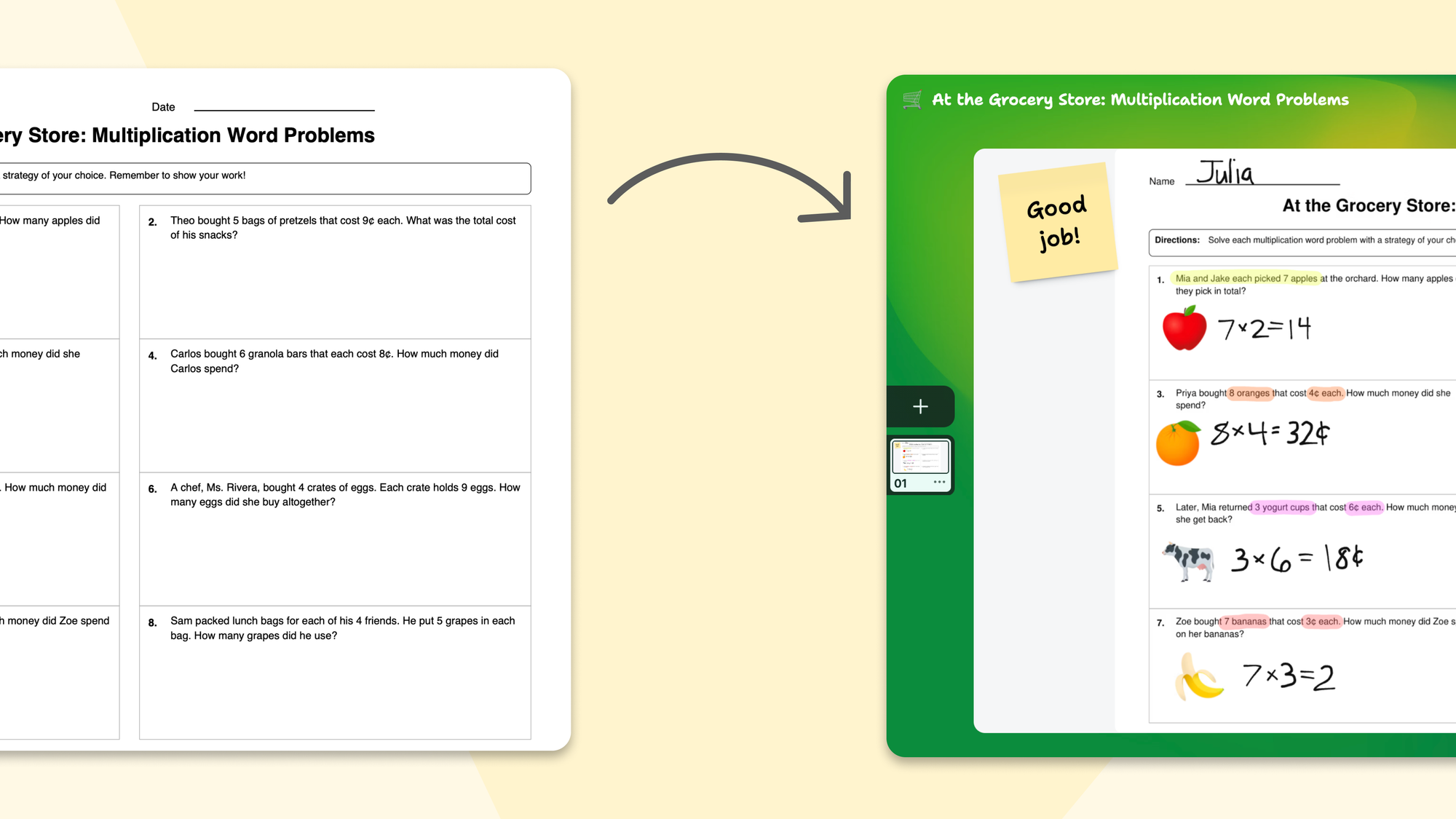
In 2024, we launched Padlet Sandbox, a collaborative whiteboard with tools for drawing, writing, and adding media.
Since then, we've watched people build lessons, storybooks, and interactive activities from scratch. But many of you told us something reasonable: "I already have stuff. It lives in Google Slides. I don't want to rebuild it."
Fair. Nobody should have to redo their life's work. Not even if the new place is nicer.
So now you can import Google Slides and PDFs directly into Sandbox. Your existing content walks in the door, and suddenly it can do new tricks.
How does the import work?
Delightfully simply. For Google Slides, you pick a file from your Google Drive. For PDFs, you upload the file. We do the conversion, and when it's ready, your new sandbox appears. No weird export steps, no file format rituals, no blood sacrifice.
What happens to my Google Slides when they become a sandbox?
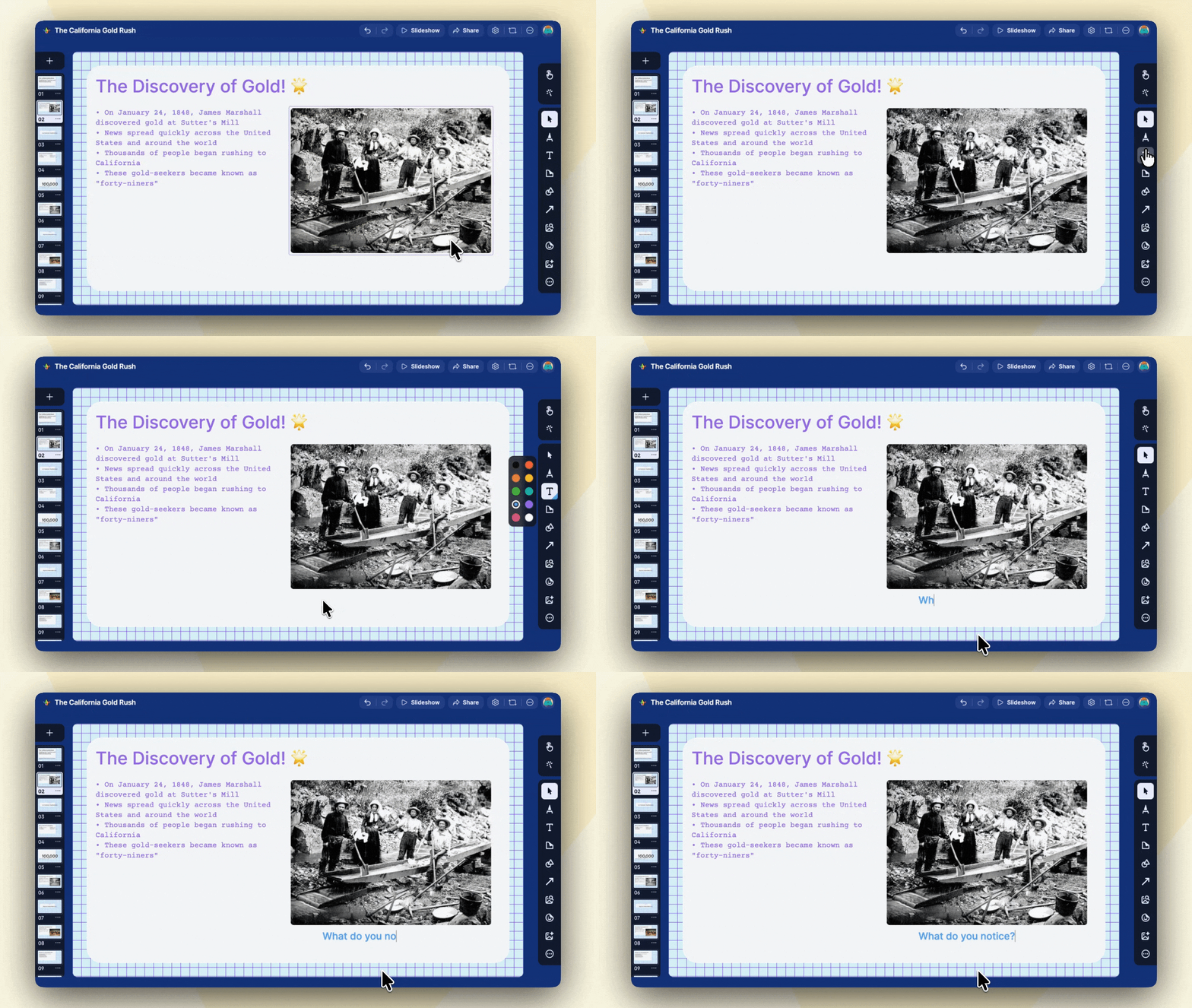
This is the fun part. Each object in your slide—text boxes, shapes, images—becomes an individual object in your sandbox. That means your imported sandbox is fully editable. You can move things around, add to them, delete the ones you never liked, and use all of Sandbox's tools on top of your existing content.
It's not a screenshot of your slides. It's your slides, reincarnated with new abilities.
And PDFs?
PDFs are a different animal. The PDF file format was designed for distribution with perfect fidelity. It's meant to look exactly the same on every device, every printer, every screen. That's its whole personality.
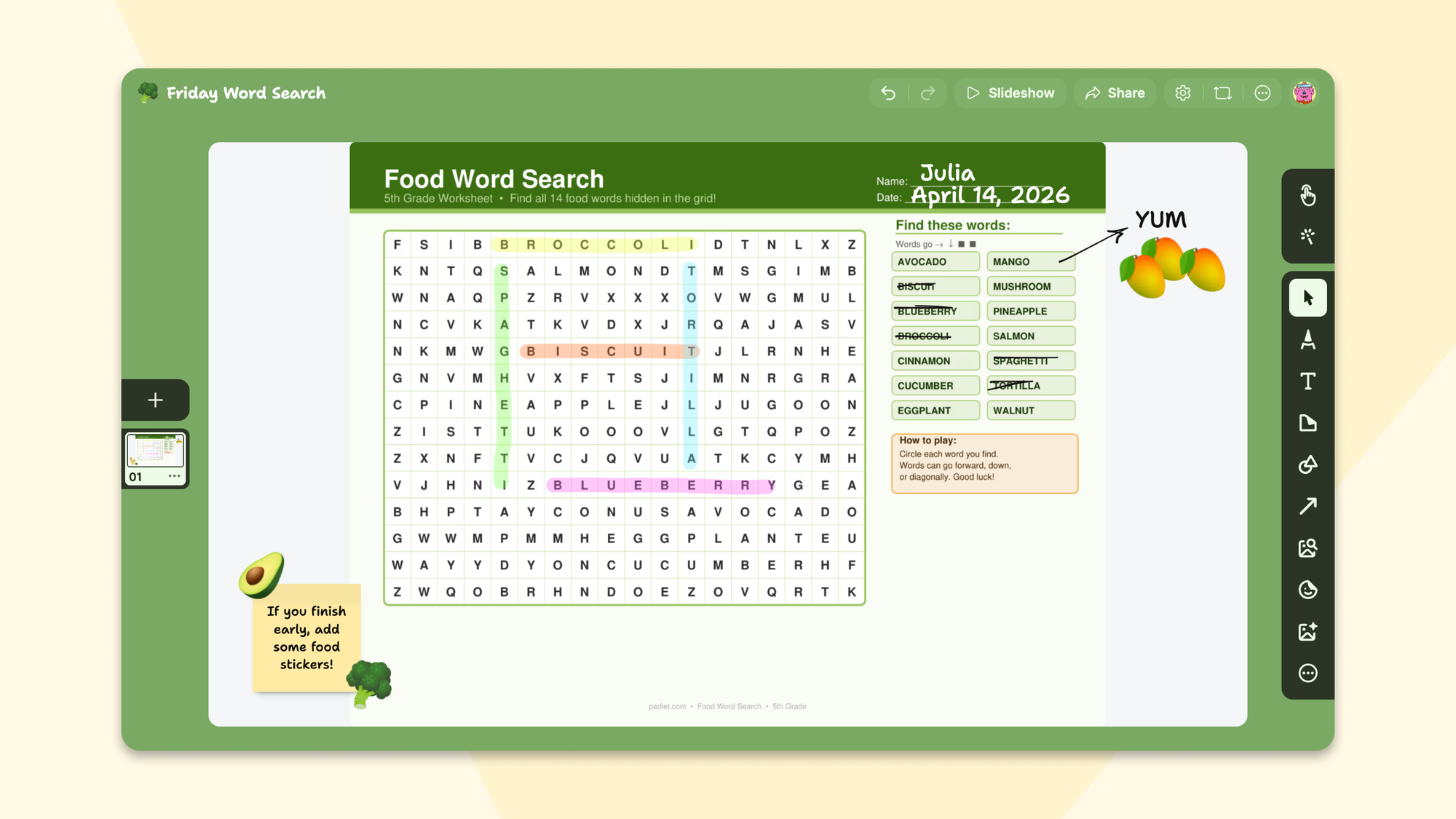
We debated whether to try to break PDFs apart into editable objects, but that would mean sacrificing the very thing that makes a PDF a PDF. So we made a deliberate choice: each PDF page becomes an image card in your sandbox, preserving exactly how it looks. You can then annotate on top using text tools, drawings, sticky notes, whatever you need.
Think of it as putting a transparency sheet over each page. The original stays pristine underneath. Your additions go on top.
Why not just present from Google Slides directly?
Because Google Slides is a one-way street. You present, they watch. Maybe someone raises a hand. Maybe someone falls asleep.
With Sandbox, you import your slides and then 30 students can annotate on them simultaneously. In real time. Your static deck becomes a living, breathing collaboration space. You can use Sandbox Slideshow to present card by card, use breakout rooms to split groups across different cards, and link objects together to create interactive navigation.
Your slides had a good life. This is their second act.
Does everything convert perfectly from Google Slides?
Honestly? No. And we want to be upfront about that.
Google Slides is vast. It supports animations, transitions, custom fonts, and probably a few features even Google has forgotten about. Building a parser for all of that is like trying to perfectly translate a novel: you can capture the meaning and most of the beauty, but some wordplay will be lost.
We've gotten to a place where 85–90% of objects convert with visuals that closely match the original. For most slides, you'll look at your sandbox and think, "Yeah, that's my deck." For some, you might notice a shape that's slightly off or a text box that needs a nudge.
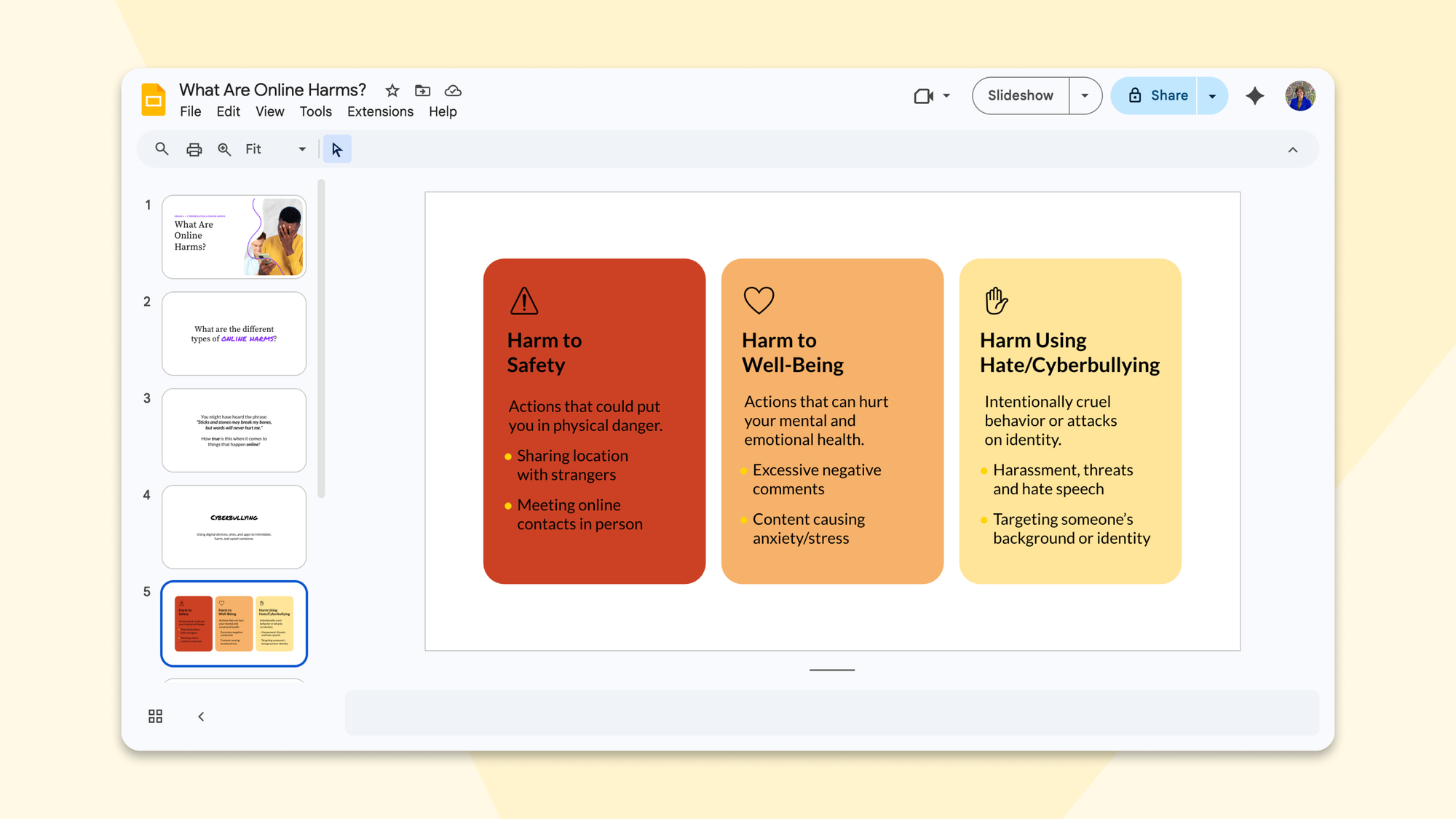
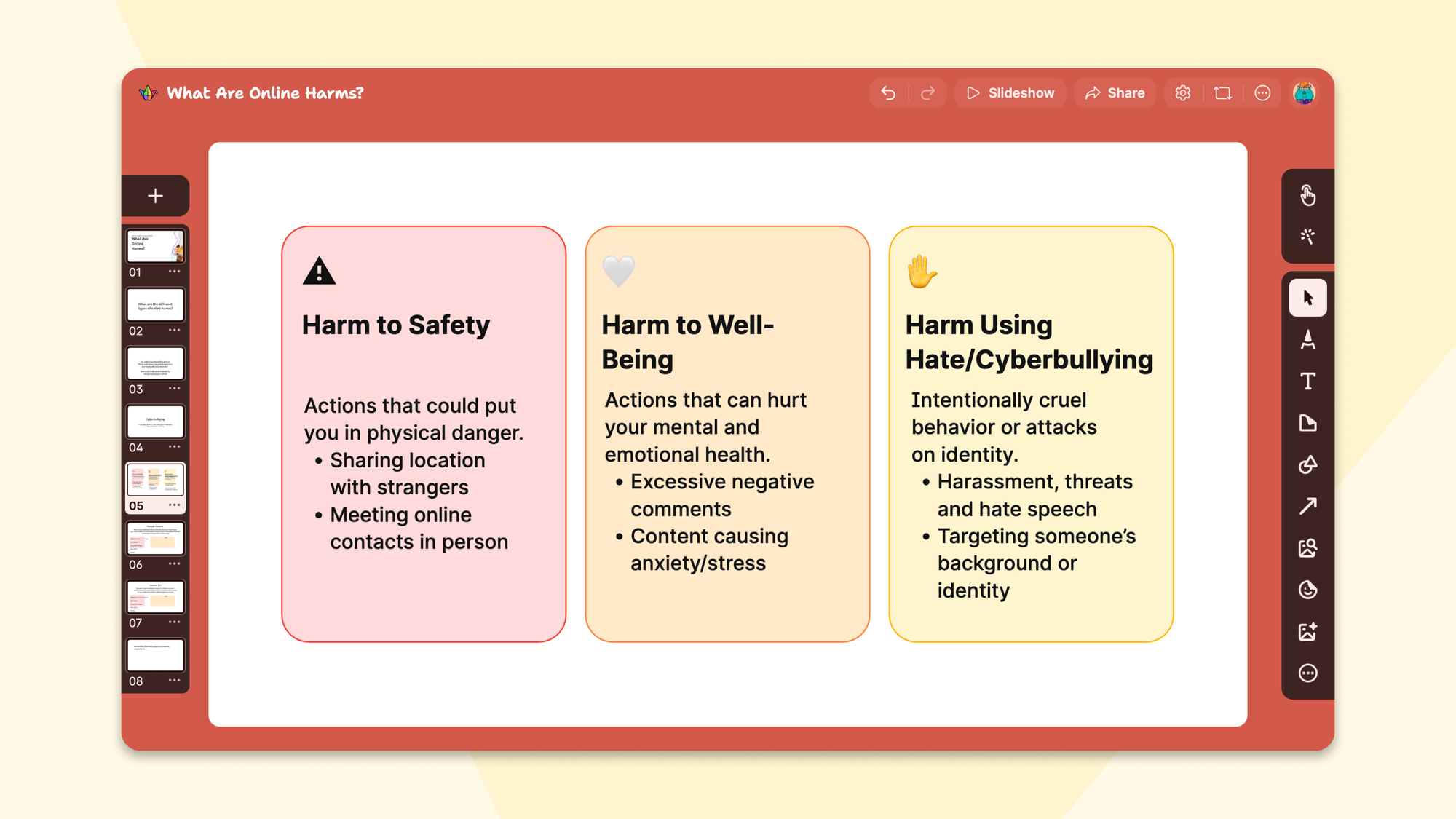
Spot the differences. (There are very few.)
Animations, transitions, and custom fonts aren't supported yet, though we'd love to get there. We're also building the next version of Slideshow with many more features, starting with boards. Speaker notes are on our radar for that. Anyone can already turn a sandbox into a slideshow, and it'll only get better.
For a detailed list of what's supported, check out this help article.
What are people making with this?
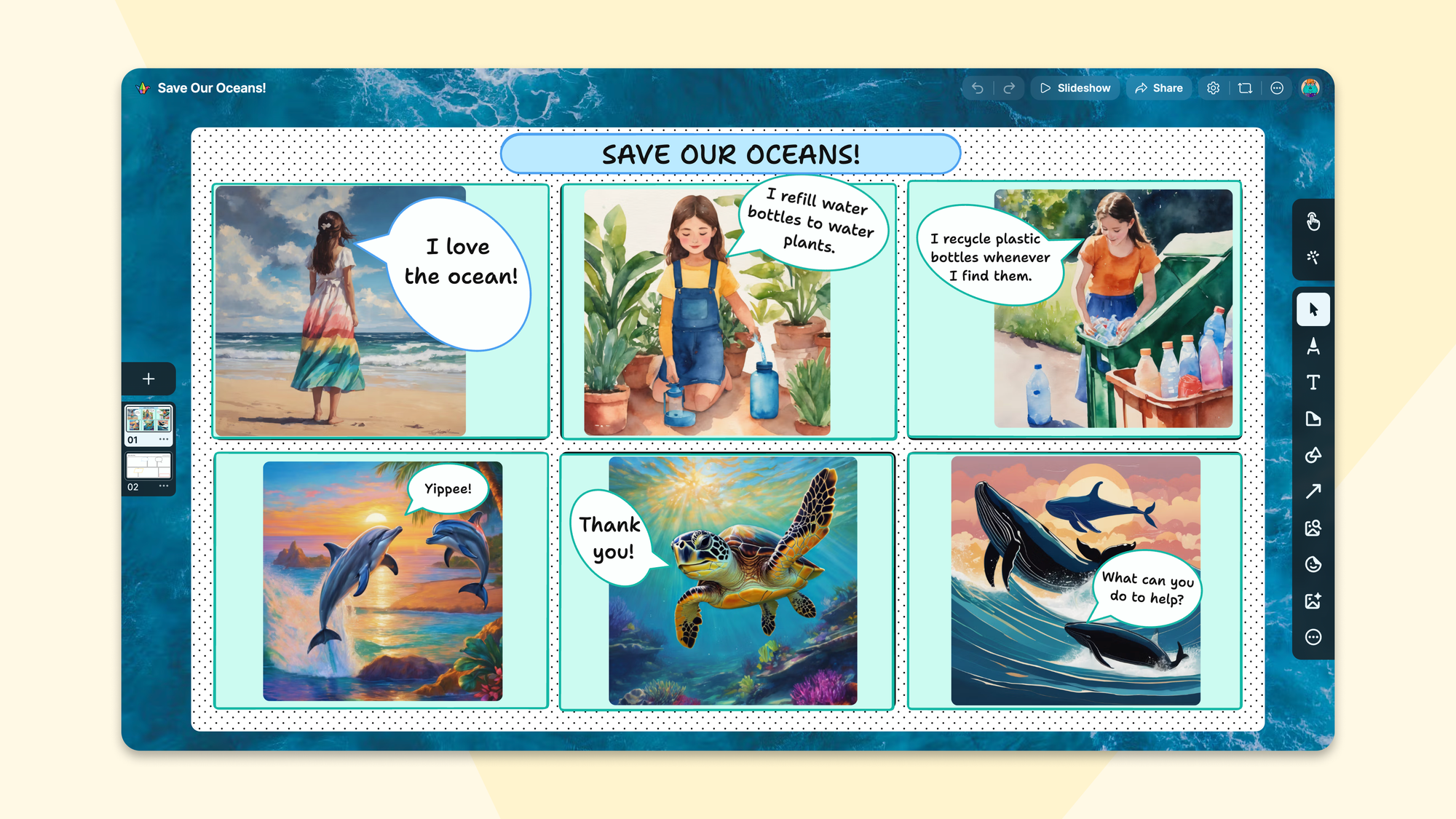
During our beta release, someone imported a comic book template from Google Slides and it converted almost fully into a collaborative sandbox. A comic book! With panels and speech bubbles and everything. That wasn't a use case we designed for. It just worked, and it was a little bit magical.
That's the thing about giving people tools and existing content. They'll combine them in ways you didn't predict.
How do I try it?
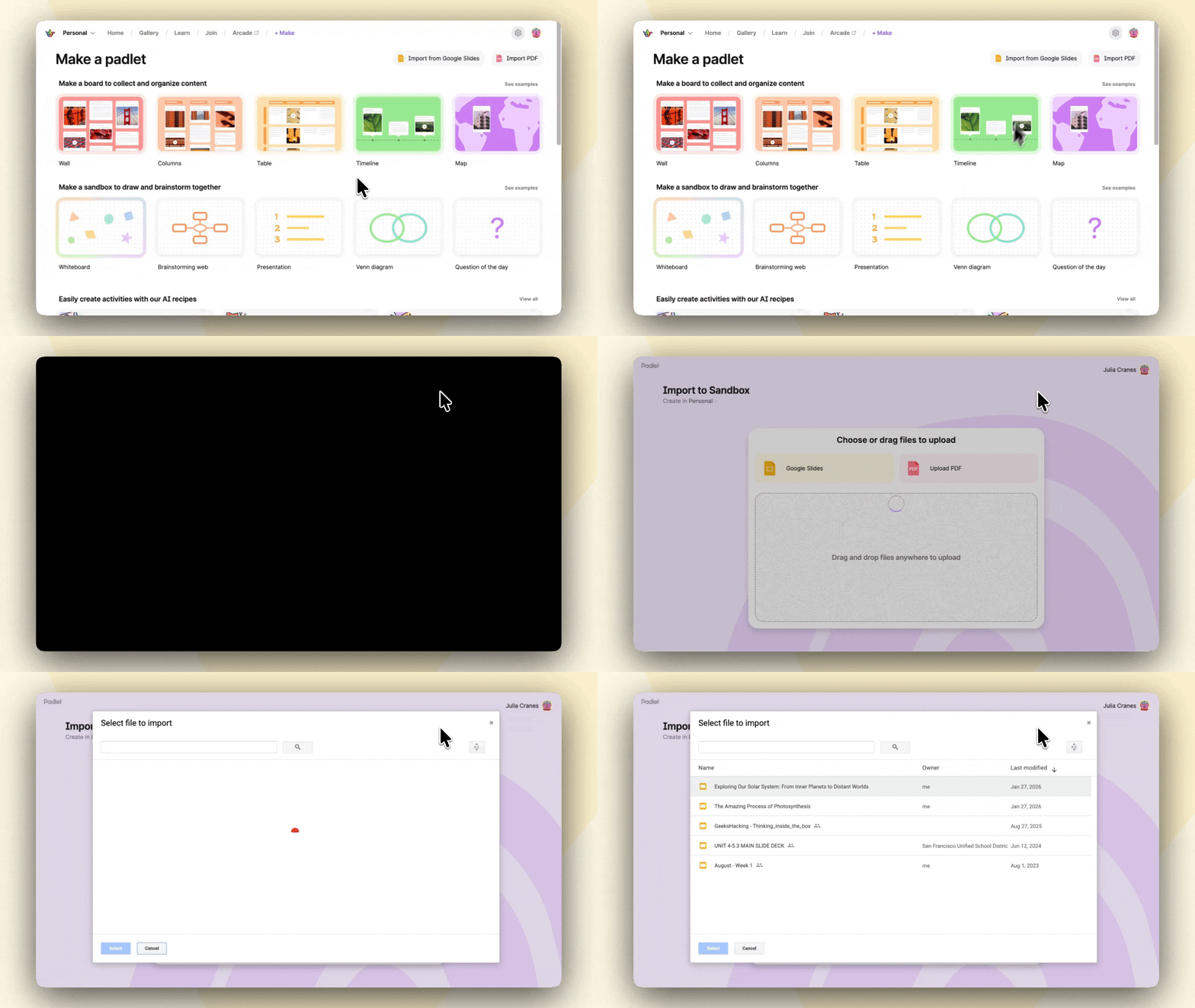
Head to your Padlet dashboard. From the Make page, click one of the import buttons. You can also navigate directly to padlet.com/import.
Import a Google Slides deck or a PDF and see what happens. If you already have templates you love, this is the fastest way to bring them into a collaborative, interactive space.
And then tell us what you build. Especially if it's a comic book.
With love and good file parsing, Duc and The Padlet Team